Connect Slack to Camber
Connect Slack to Camber so you get a direct message (DM) in Slack when a pod or chat you started finishes or fails. You do not need to keep the Camber tab open to know when a long run is done.
How it works
A Camber Team Leader connects one Slack workspace to a Camber team. Each team member then chooses which events they want to be notified about. Camber matches you to your Slack account by email address and sends the DM from the Camber app in Slack.
Each DM contains:
- Whether the pod or chat finished or failed.
- The chat title, linked to the chat in Camber.
- A short preview of the reply (for failed runs: “The run stopped with an error.”).
- The agent name, team name, and how long the run took.
- An Open chat button.
Prerequisites
- A Slack workspace where you can install apps.
- The Camber team you want to connect selected as your current team.
- The
Leaderrole on that team to connect or disconnect Slack. Members with theUserrole can use an existing connection and manage their own notification settings.
Connect Slack
- Open Data Connectors.
- Confirm that the page shows Connectors for team name for the team you want to connect.
- Find Slack and select the card.
- In Slack, choose the workspace you want to connect.
- Review the requested permissions and select Allow.
Choose which notifications you get
Each team member sets their own notifications, separately for each team.
- Select the team you want to configure.
- Open your profile and go to the Notifications tab.
- Under Slack, check that your workspace name and Slack handle are shown (for example,
Acme · @jane). - Turn on the events you want:
| Setting | Sends a DM when | Default |
|---|---|---|
| A pod I started ends | A pod you started finishes or fails | On |
| A chat I started ends | A single-agent chat you started finishes or fails | Off |
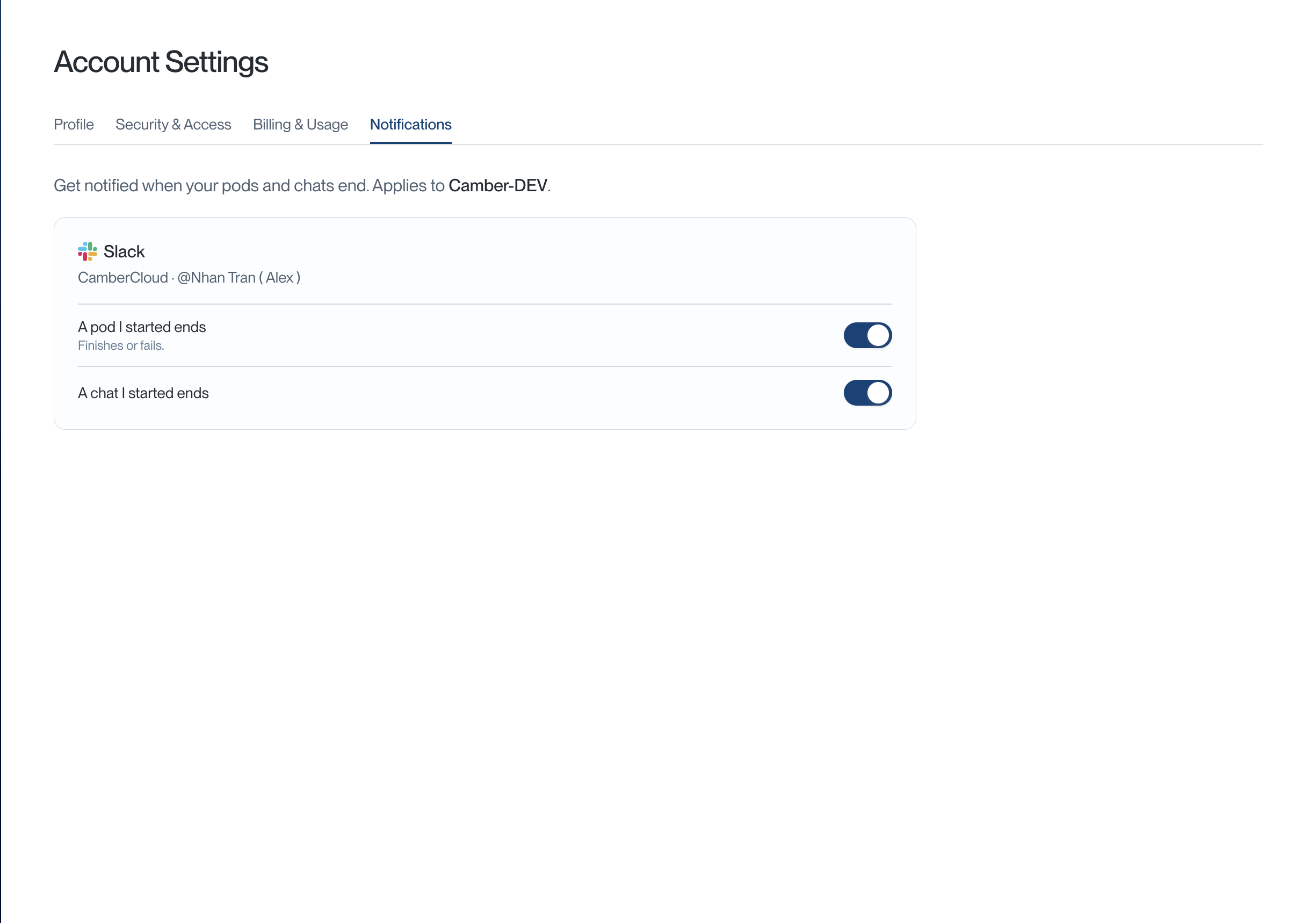
Changes are saved when you flip a switch. While a chat is open, a note under the message box shows who Camber will DM and links back to these settings.
Disconnect Slack
- Select the team that owns the connection.
- Open Data Connectors.
- Find Slack under My Connections.
- Select Disconnect.
Disconnecting revokes Camber’s access to the workspace and stops all Slack DMs for the team.
Troubleshooting
“This Slack workspace is already connected to another Camber team”
Another Camber team is using that workspace. Ask that team’s Leader to disconnect it first, then connect again.
“No workspace member uses your email”
Camber finds your Slack account by your Camber email address. Make sure that address is your email in the Slack workspace, then select Check again. Guest accounts cannot receive DMs.
“Couldn’t reach Slack. Your settings are kept.”
Camber could not contact Slack. Select Try again. Your notification settings are not lost.
I’m not getting DMs
Check that:
- Slack appears under My Connections for the team you ran the chat in.
- The matching switch under Profile → Notifications is on. Single-agent chats are off by default.
- The run was started by you, not a teammate.
- The Notifications tab is visible. If it is not, Slack notifications are not yet enabled for your account.