Connect Jira to Camber
Connect a Jira site to Camber so your team can assign the Camber agent to Jira issues or mention @Camber in a comment. Camber starts an agent session with the Jira issue context, completes the requested data work, and reports the result on the Jira issue.
Prerequisites
Before you connect a Jira site:
| Requirement | Details |
|---|---|
| Camber account | Have an active Camber account and sign in to Camber. |
| Rovo and AI features | Confirm that Rovo and AI features are active for the Jira site. If they are not available, ask an Atlassian organization administrator to manage Rovo access. |
| Camber team role | Your Camber account must have the Leader role on the team you want to connect. |
| Account email | Your Jira and Camber accounts must use the same email address. |
Install Camber on the Jira Site
- Sign in to the Jira Cloud site where you want to use Camber.
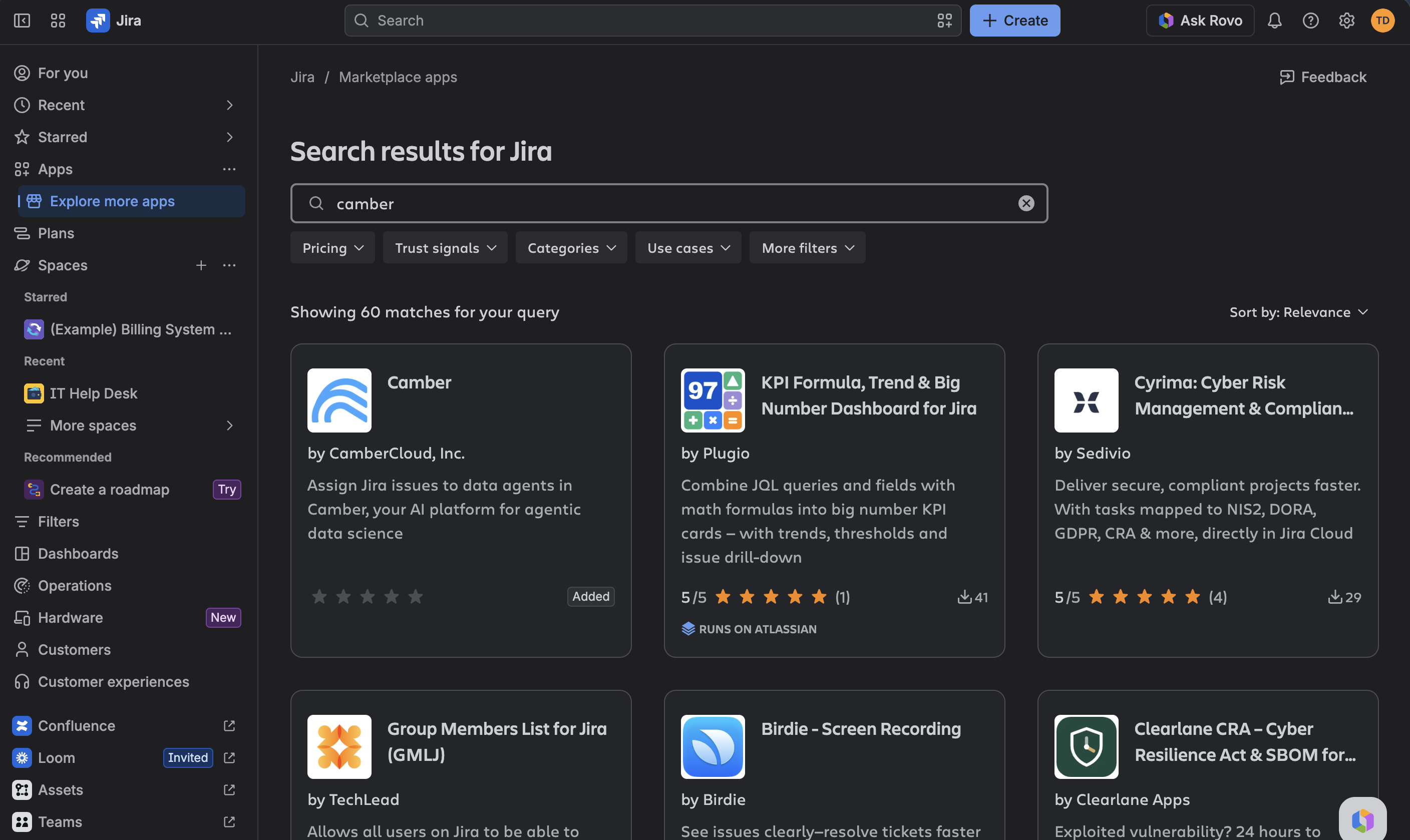
- Open Apps → Explore more apps.
- Search for
Camber. - Select Camber by CamberCloud, Inc.
- If the app is not installed, select Get it now. You can also start from Camber on the Atlassian Marketplace.
- Select the Jira Cloud site, review the requested permissions, and complete the installation.
During installation, Jira asks an administrator to approve these Camber app permissions:
| Scope | App permission | Why Camber needs it |
|---|---|---|
read:app-system-token | Access Jira from Camber’s remote service | Receive Jira requests and send task status and results back to Jira |
read:app-user-token | Receive signed-in user context | Support authenticated Jira user context |
read:email-address:jira | Read Jira user email addresses | Match Jira and Camber accounts that use the same verified email address |
read:jira-work | Read Jira issues | Read Jira issue context needed for the user’s request |
write:jira-work | Write Jira issues | Perform Jira changes requested by an authorized user |
The Jira site shows Added on the Camber card after the app is installed.
Connect the Jira Site to Camber
Installing the app registers Camber on the Jira site. You must then link the Jira site to the Camber team whose members, data connectors, credits, and compute resources the Camber agent should use.
- Open Jira settings → Apps.
- Under Apps, select Camber.
- Select Connect to Camber.
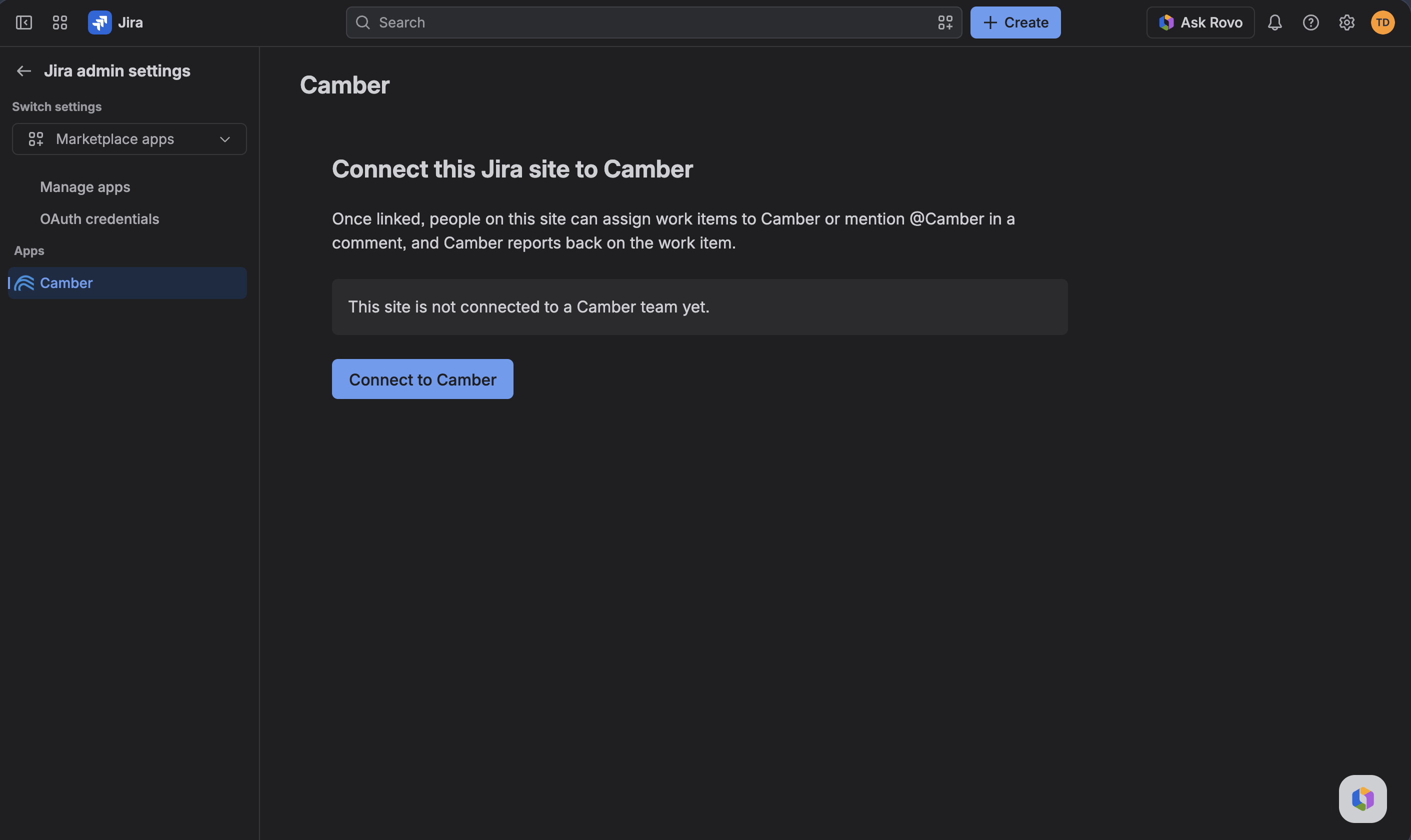
Camber opens a short-lived connection page in a new browser tab.
- Sign in to Camber if prompted.
- Check that the Jira Cloud site shown on the page is the site you intend to connect.
- Under Link to Team, select the Camber team to use.
- Select Link Site.
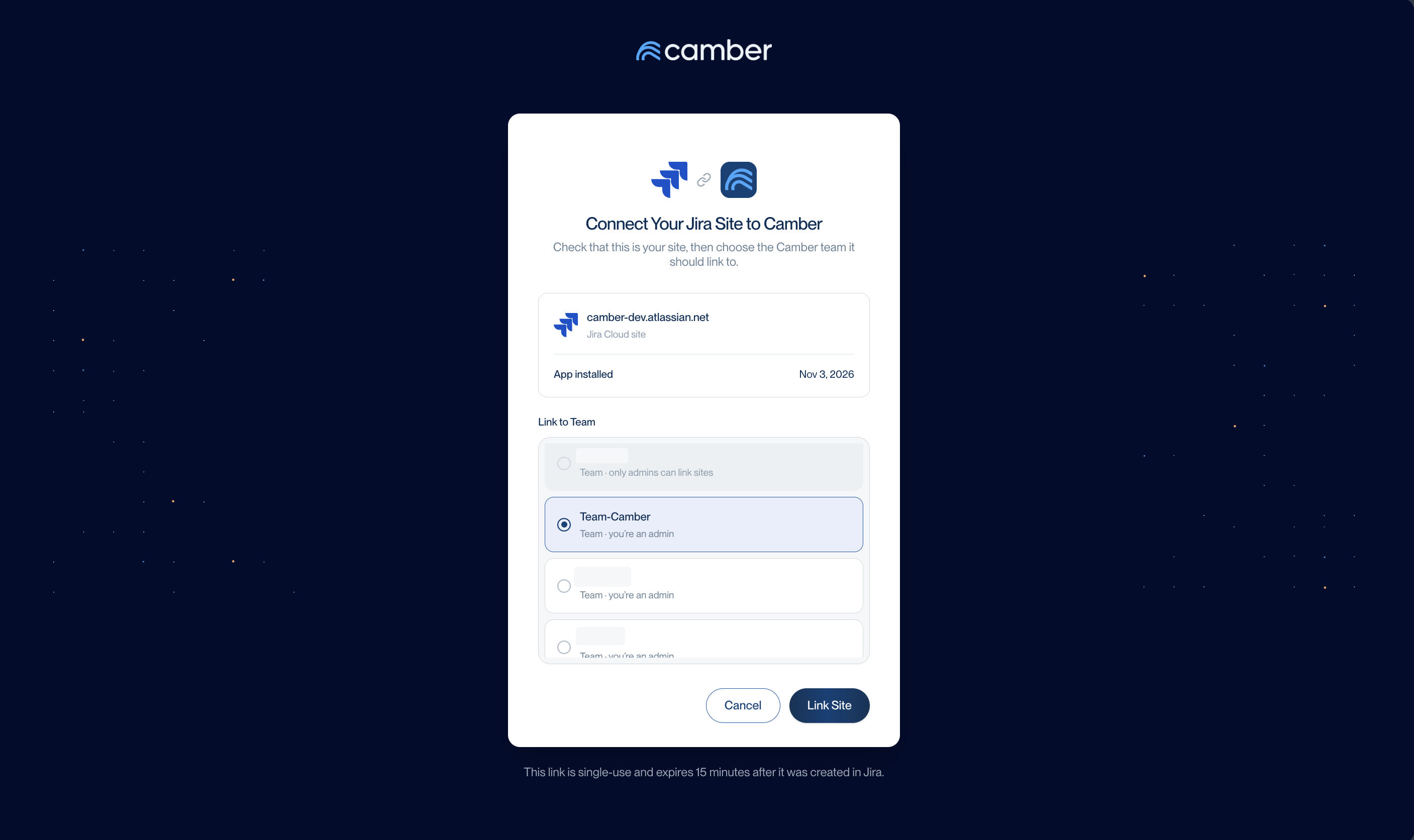
Leader role.After Camber confirms that the site is linked, return to Jira settings → Apps → Camber and select Check again. The connection is ready when the page shows the name of the connected Camber team.
If the connection link expires, reopen the Camber app on the Jira site and select Connect to Camber again to create a new link. You never need to enter a Jira Cloud ID manually.
Getting Started
Assign the Camber Agent to a Jira Issue
- Open the Jira issue you want the Camber agent to process.
- Add a clear request that includes the goal, relevant data source, expected analysis, and desired output. Put the request in the description before using the Agents picker, or include it in the same comment that mentions
@Camber. - Select Agents, then select Camber. Alternatively, post the comment that mentions
@Camberand contains the request. - Wait for Camber is on it… in the Agents section.
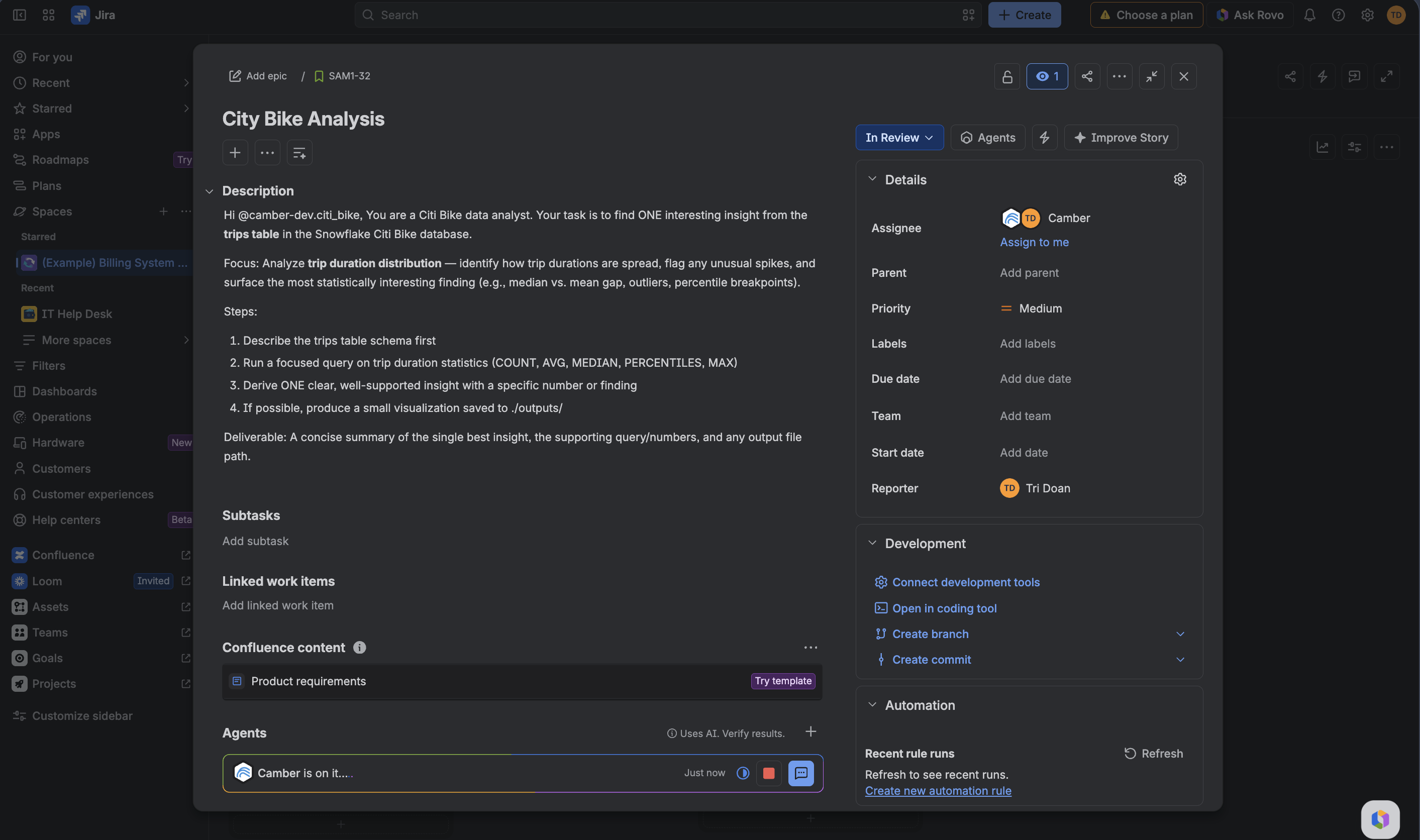
Camber uses the Jira issue summary, description, and the instruction or comment that started the session as context. Open the agent session to monitor progress, provide follow-up instructions, and review the result.
Disconnect the Jira Site
Only a Leader of the connected Camber team can disconnect the Jira site.
- In Camber, select the team that owns the Jira connection.
- Open Data Connectors.
- Find Jira under My Connections.
- Select Disconnect.
Disconnecting removes the link between the Jira site and the Camber team.
Troubleshooting
Start by reviewing the prerequisites, especially the same-email requirement, the Leader role, and the required Jira permissions.
The Jira site cannot connect to a Camber team
- Confirm that your Jira and Camber accounts use the same email address.
- Confirm that your Camber account has the
Leaderrole on the intended team. - If the connection link expired, return to Jira settings → Apps → Camber and select Connect to Camber again.
- If the Jira site or Camber team is already connected elsewhere, disconnect the existing connection before creating a new one.
Connect the Jira site to a different Camber team
- In Camber, select the team currently connected to the Jira site.
- Open Data Connectors.
- Find Jira under My Connections and select Disconnect.
- Return to Jira settings → Apps → Camber.
- Select Check again, then select Connect to Camber.
- On the Camber connection page, select the new team and select Link Site.
- Return to the Jira site and select Check again. Confirm that the site shows the new Camber team.
You do not need to uninstall or reinstall Camber when you only want to change the connected team.
Related Documentation
- Data Connectors — Configure and manage external data connections in Camber.
- Team Management — Manage Camber team members and Leader access.
- Camber on the Atlassian Marketplace — View the Jira app listing and current permissions.
- Install and manage Atlassian apps — Atlassian’s administrator guide for Marketplace apps.
- Collaborate with AI agents on Jira issues — Atlassian’s guide to Jira agent surfaces and issue interactions.