Mirror Context
Mirror Context helps you move from working locally in tools like Claude Code, Cursor, Codex, or Gemini CLI into Camber Cloud without rebuilding your project context by hand.
The goal is continuity: after your local assistant creates or updates a Camber agent, that agent can work with the same project files, chat history, skills, and supporting context inside Camber.
What gets mirrored
Mirror Context can include:
- Your project directory files, including code, notebooks, configs, and approved data files such as
.csv - The current local chat history
- Local assistant context files, such as project instructions or rules
- Local skills that should also be available to the Camber agent
- Supporting documents and links approved for Knowledge Base
- Runtime files such as
requirements.txt,pyproject.toml,package.json,Dockerfile, orMakefile - Schema or data mapping notes
Important notices
- Files synced into the project mirror are available in Camber Cloud, but they are not all automatically indexed as Knowledge Base.
- Files added through the Camber Knowledge Base flow are indexed for agent retrieval.
- If a migrated skill contains a
references/folder and is compiled through the Camber CLI, those reference files are indexed into Knowledge Base. - Skills uploaded or edited through the Camber Web UI are not automatically compiled by the CLI, and their
references/files are not automatically indexed. - Avoid syncing
.git,.env*, and virtualenv folders unless you explicitly intend to include them. - Review sensitive project files before syncing.
Mirror Context folder structure
When Mirror Context syncs your local workspace into Camber Cloud, it organizes the context under an agent-specific folder:
.camber/agent-context/<agent-alias>/
├── README.md
├── chat/
├── knowledge-base/
├── project/
├── requirements/
├── schema/
└── skills/
Each folder has a different purpose:
README.md: A short summary of the mirrored workspace, including the project purpose, important commands, inspected files, sync notes, and exclusions.chat/: Exported chat history from your local assistant session. This helps the Camber agent understand what you were working on before switching to Camber Cloud.knowledge-base/: Files, links, and documents intentionally indexed for agent retrieval.project/: A mirror of your local project directory. This is where code files, notebooks, data files, configs, and other project files are uploaded so they can be used in Camber Cloud.requirements/: Runtime and environment files such as dependency manifests, lockfiles, Dockerfiles, compose files, Makefiles, or environment templates.schema/: Notes that describe data structure, dataset columns, API schemas, database schemas, file relationships, or mapping between datasets.skills/: Local assistant skills migrated into Camber so the cloud agent can use similar behavior.
Use a mirrored agent
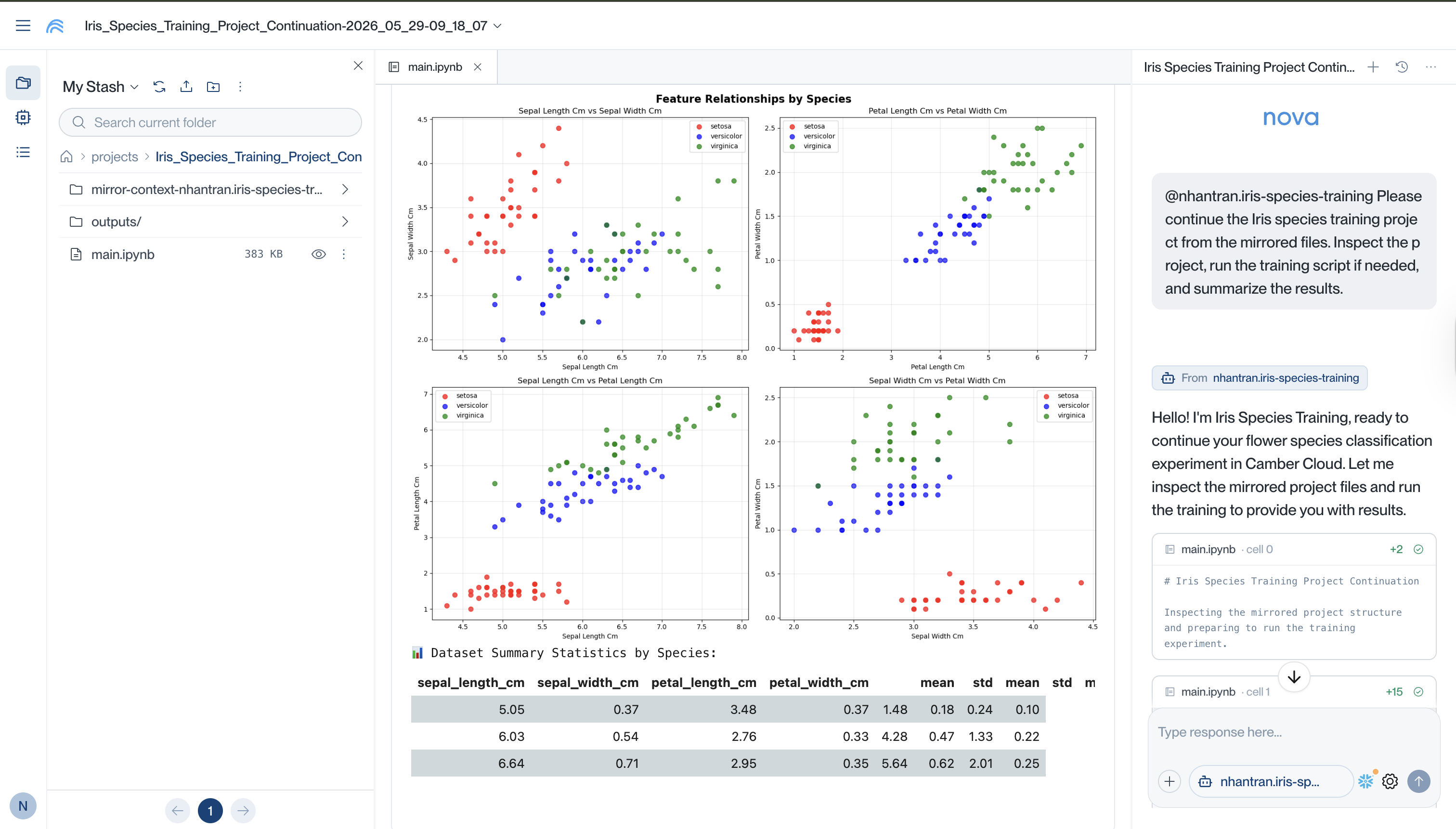
When you chat with a mirrored agent in Camber Cloud, Camber may copy that agent’s mirrored project/ folder into your active Camber project.
It appears as a new folder:
mirror-context-<owner>.<agent-alias>/For example:
mirror-context-camberteam.be-useful/This folder is the cloud copy of the mirrored project context for that agent. It lets the agent and the user work with the same project files inside Camber without depending on the original local machine path.
Notes:
- The folder is created in your Camber project when you use the mirrored agent.
- If you use multiple mirrored agents, each agent may create its own
mirror-context-<owner>.<agent-alias>/folder. - The
<owner>is included to avoid conflicts when different users or teams have agents with the same alias. - Deleting this folder from the Camber project lets Camber copy it again the next time the mirrored agent is used.
- This is different from your original local project folder name; the runtime folder name in Camber is based on the mirrored agent identity.
Pull a mirrored agent back to local
You can also pull a mirrored Camber agent back to your local machine with the Camber CLI:
camber agent pull @owner.aliasThis creates a local folder named:
project_<owner>_<alias>/Inside that folder, Camber restores the mirrored files and installs the agent for your local assistant:
project_<owner>_<alias>/
├── .claude/ or .cursor/
├── README.md
├── chat/
├── knowledge-base/
├── project/
├── requirements/
├── schema/
└── instruction.md
For Claude Code:
camber agent pull @owner.alias --integrate claude-codeFor Cursor:
camber agent pull @owner.alias --integrate cursorPulled skills are remapped into .claude/skills/ or .cursor/skills/. They are not restored as a root skills/ folder.
See Agent Pull for the full command reference.
Typical workflow
- Connect your local assistant to Camber MCP.
- Ask it to create or update a Camber agent from the current workspace.
- Review the workspace context, files, skills, and exclusions before syncing.
- Let the assistant upload the project mirror, chat history, approved skills, and approved Knowledge Base files.
- Open Camber Cloud and chat with the mirrored agent.
- Check the
mirror-context-<owner>.<agent-alias>/folder in your Camber project when project files are needed. - Optional: pull the mirrored agent back to local with
camber agent pull @owner.alias.
[screent for local assistant showing the Mirror Context upload plan, including project files, chat history, skills, Knowledge Base files, and excluded files]
Usage examples
Continue local work in Camber Cloud
Use Mirror Context when you started work in a local assistant, such as Claude Code, Cursor, Codex, or Gemini CLI, and want a Camber agent to continue with the same project files, chat history, skills, and instructions.
Continue data science experiments in the cloud
Use Mirror Context when you start analyzing data, exploring a dataset, building a notebook, or training a model locally, then need more compute for larger experiments.
After syncing, the Camber agent can work from the mirrored project folder in Camber Cloud, inspect the same notebooks, scripts, configs, analysis outputs, and data files, then continue the analysis without being limited by local CPU, memory, GPU, or storage.
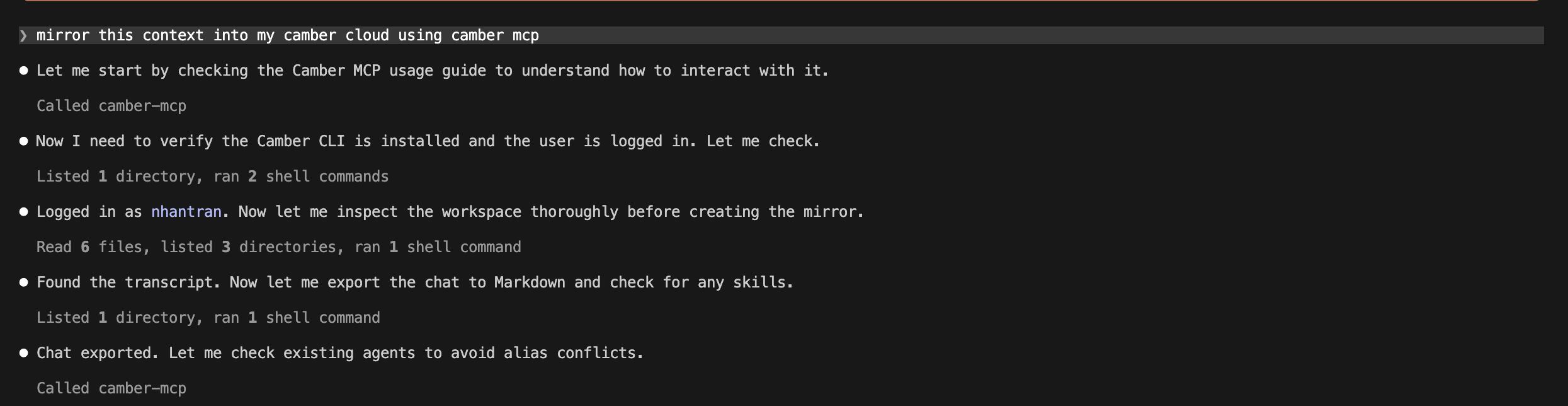
The assistant will inspect the workspace, create a Camber agent, upload the project mirror, sync chat context, and add approved Knowledge Base files before you continue in Camber Cloud.
Command your Claude Code to mirror the current project into Camber Cloud:
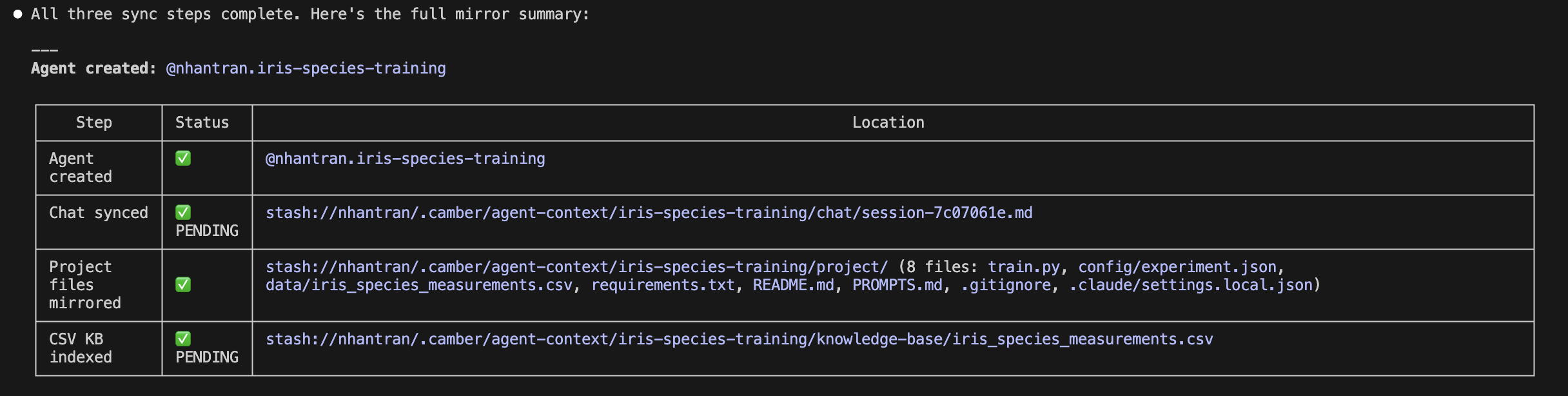
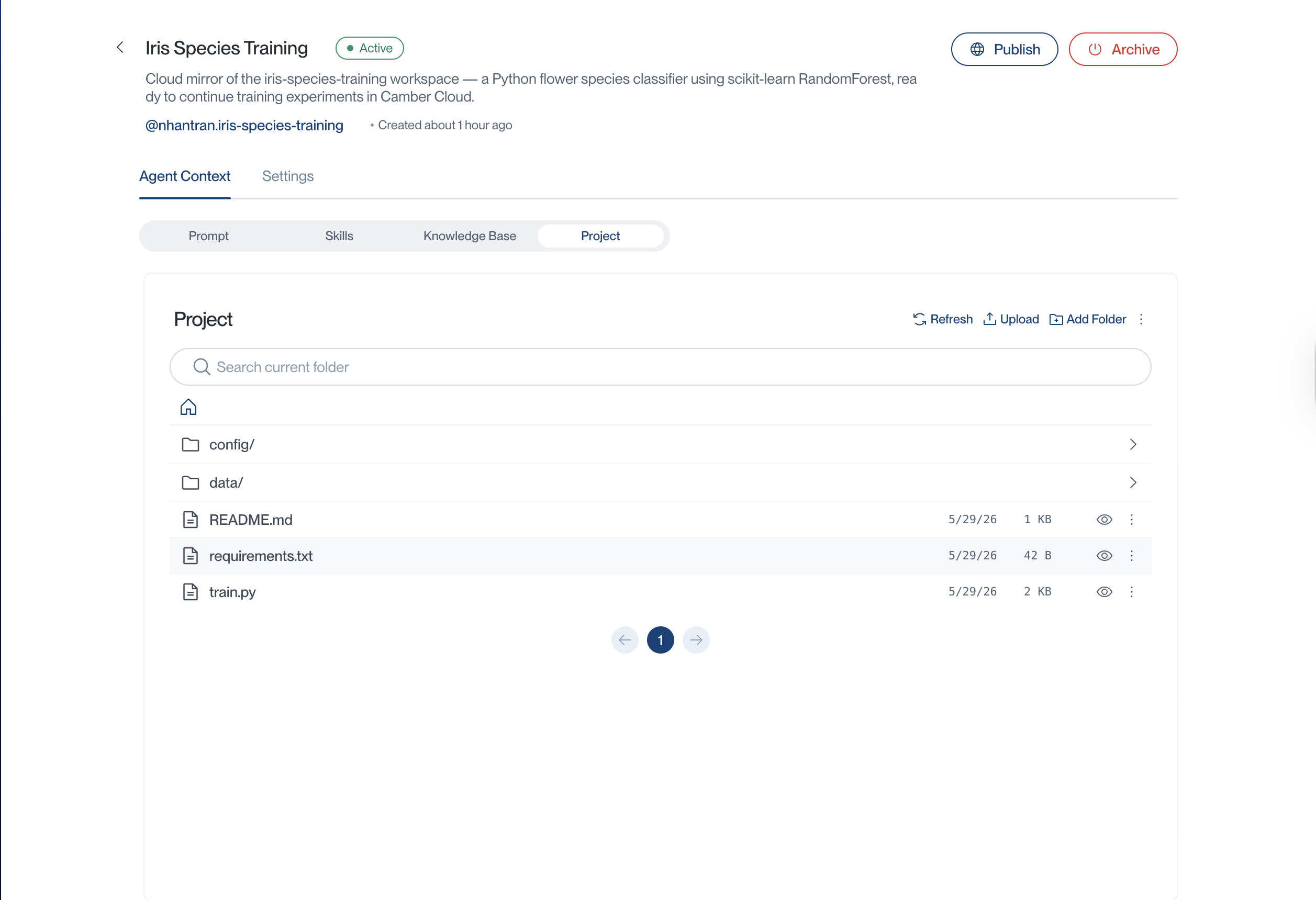
After the mirror completes, you can view the current mirrored project successfully in the agent’s Project Directory tab:
Then command your created agent in Camber Cloud to continue from the mirrored project files:
Project directory sync
The project directory is uploaded as a folder so the mirror does not miss files that matter to your workflow.
A typical project upload uses the Camber CLI:
camber stash cp -r <project-root> stash://<owner>/.camber/agent-context/<agent-alias>/project \
  --use-gitignore \
  --exclude ".git/**" \
  --exclude ".env*" \
  --exclude "node_modules/**" \
  --exclude ".venv/**" \
  --exclude "dist/**" \
  --exclude "build/**"
[screent for terminal output showing successful camber stash cp recursive project upload with gitignore and exclude patterns]
The project mirror copies files into project/. For matching files that should be searchable as Knowledge Base, add them separately from the project root:
camber agent context add @owner.alias --file <project-root> --include ".csv" --output json[screent for terminal output showing successful camber agent context add folder indexing with –include “.csv”]
Use any supported include pattern, such as *.csv, reports/**/*.csv, *.md, or docs/**/*.pdf, when those files should be indexed as Knowledge Base.
Chat sync
The current local chat can be exported and synced into chat/. This helps the Camber agent understand the conversation that led to the current task.
Different tools store chat history differently. For example, Claude Code and Cursor have different local transcript formats, so the connected assistant handles export based on the client you are using.
Skills sync
Local skills can be migrated so the Camber agent can use similar behavior in the cloud.
A skill folder usually looks like:
skills/
└── <skill-name>/
    └── SKILL.md
If the skill includes supporting files, they are kept with the skill folder. If it includes a references/ folder and is migrated through the Camber CLI, those reference files are indexed into Knowledge Base.
Verify the mirror
After syncing, check:
- The agent exists in Camber.
- Project files are visible in the agent’s Project Directory tab.
- Chat context was synced.
- Skills appear in the Skills tab.
- Expected data files, such as
.csv, are available when needed. - The agent can answer questions using the mirrored project context.
Troubleshooting
I do not see my project files.
Check that the project folder was uploaded to .camber/agent-context/<agent-alias>/project/, then chat with the mirrored agent in Camber so it can copy the project mirror into your active project.
My skill references are not in Knowledge Base.
Only references/ files from skills compiled through the Camber CLI are indexed automatically. Skills uploaded through the Web UI are not automatically compiled.
The agent still mentions my local folder name.
The runtime folder in Camber is mirror-context-<owner>.<agent-alias>/. If the agent instructions mention the old local folder as the runtime path, update the agent instructions to use the mirror context folder name.
My CSV or data file is missing.
Confirm that the file was not excluded by .gitignore or an explicit exclude pattern during project upload. If the file should be searchable as Knowledge Base, run camber agent context add @owner.alias --file <project-root> --include ".csv" --output json from the project root.