Artifacts
Artifacts
Save and Share Artifacts
Artifacts are generated images, tables, HTML, and videos that you save for later use.
Create Artifacts from Outputs
- Open a chat or project in the correct workspace.
- Open a generated output in the output panel.
- Select Add to Artifacts.
- Select View in Artifacts to open the saved result.
The artifact belongs to the workspace where its source chat or project was created.
Find an Artifact
- Select the artifact’s workspace.
- Select Artifacts in the left sidebar.
- Search by name or filter by artifact type.
- Select the artifact to open its preview.
Artifact Actions
| Action | What it does | Who can use it |
|---|---|---|
| Rename the title | Select the title, enter a new name, then save | Artifact owner |
| Share | Create or manage a view-only public link | Artifact owner or a member of its team workspace |
| Remove | Permanently remove the artifact from the library | Artifact owner |
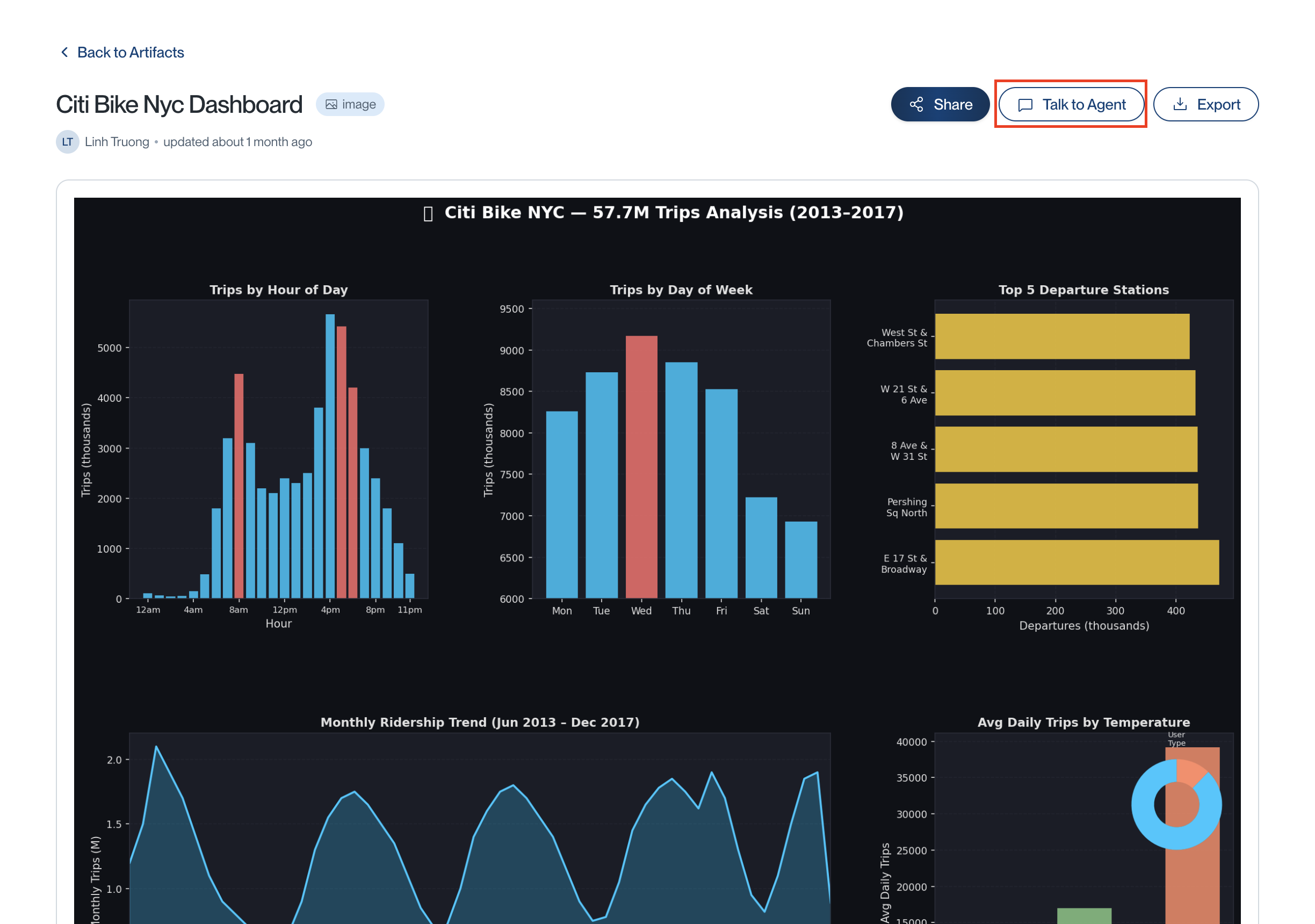
| Talk to Agent | Continue in chat with the related agent when available | Anyone who can access the artifact and agent |
Share Artifacts
- Open the artifact and select Share.
- Choose when the link expires.
- Turn Public on.
- Copy the generated link.
- Optionally require a password before sending the link.
Anyone with the active link can view the artifact. If a password is enabled, they must enter it first. Turn Public off to revoke the link.
Before sharing a team artifact publicly, confirm that the team permits public access and that the artifact contains no private information.
Talk to Agent
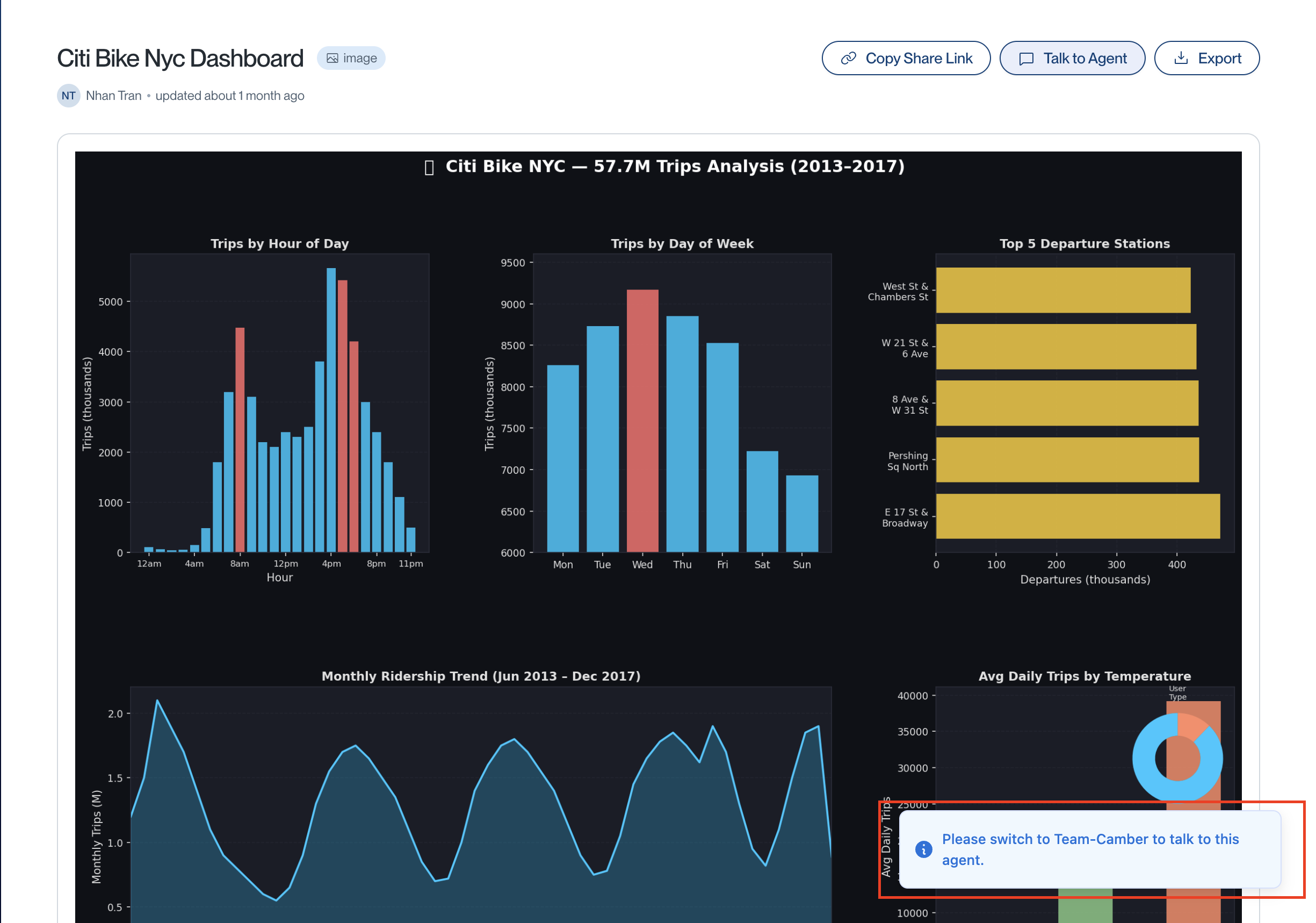
Select Talk to Agent from the artifact page. If the artifact is linked to an agent in another team workspace, Camber asks you to switch to that team first. If the artifact has no linked custom agent, Camber offers to continue with the coding agent.
Related: Workspaces | Agents | Projects