Agent Versioning
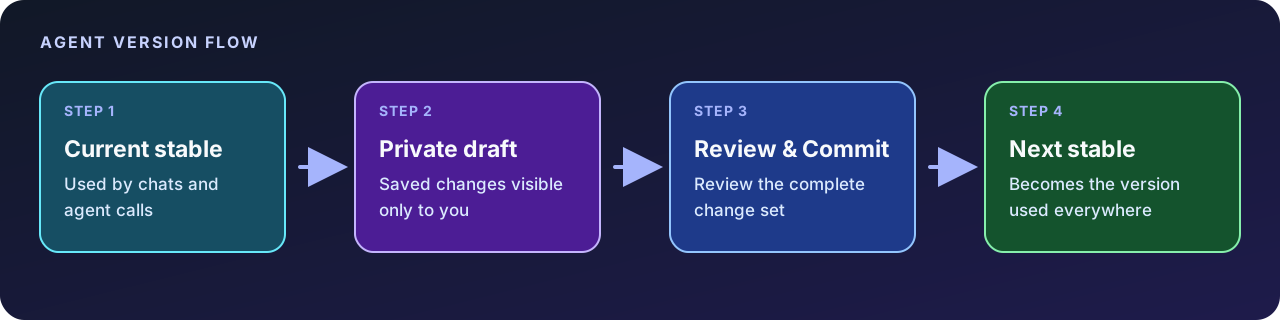
Agent versioning lets you improve an agent in the web app without changing the version that people are already using. A versioned web edit moves through three states:
- Current stable version - the version people are using now.
- Private draft - your saved changes, visible only to you.
- Next stable version - the draft after you review and commit it.
For example, an agent might move from v2 to the private draft v3-preview.1, then to stable v3. Camber chooses these numbers automatically.
preview.n, Camber has already assigned at least n - 1 earlier identifiers in that agent’s preview sequence. This is a sequence number, not a reliable count of other collaborators or drafts that are still active.| State | Who can see it? | Used by chats and agent calls? | Shown in Version History? |
|---|---|---|---|
| Current stable version | Anyone who can use the agent | Yes | Yes |
| Private draft | Only the editor who created it | No | No |
| Next stable version, after commit | Anyone who can use the agent | Yes | Yes |
To check whether a web edit is live:
- If the version badge contains preview, the versioned edit is still private.
- If the badge no longer contains preview after you commit, the edit is now part of the stable version used wherever the agent appears.
- If you changed only metadata such as the name or description, that change is immediate and does not need a version commit.
What a version contains
Camber versions the parts of an agent that change its instructions, responses, tools, and working context.
| Versioned | Where you edit it |
|---|---|
| Instructions | Agent Context > Instruction |
| Structured output setting | Settings > Output Configuration |
| Rich-text content | Settings > Content Configuration |
| Skills | Agent Context > Skills |
| Knowledge Base resources | Agent Context > Knowledge Base |
| Project Directory files | Captured in committed versions, including versions created by Context Mirror pushes |
camber agent push includes them in the next stable version.The following agent metadata is not versioned:
- Name
- Alias
- Description
- Active or archived state
- Private or public access
Metadata changes take effect independently of a version commit. This is why the review panel can report No content changes found after you change only the agent name, alias, description, or status.
Create and review a draft in the web app
1. Open the agent
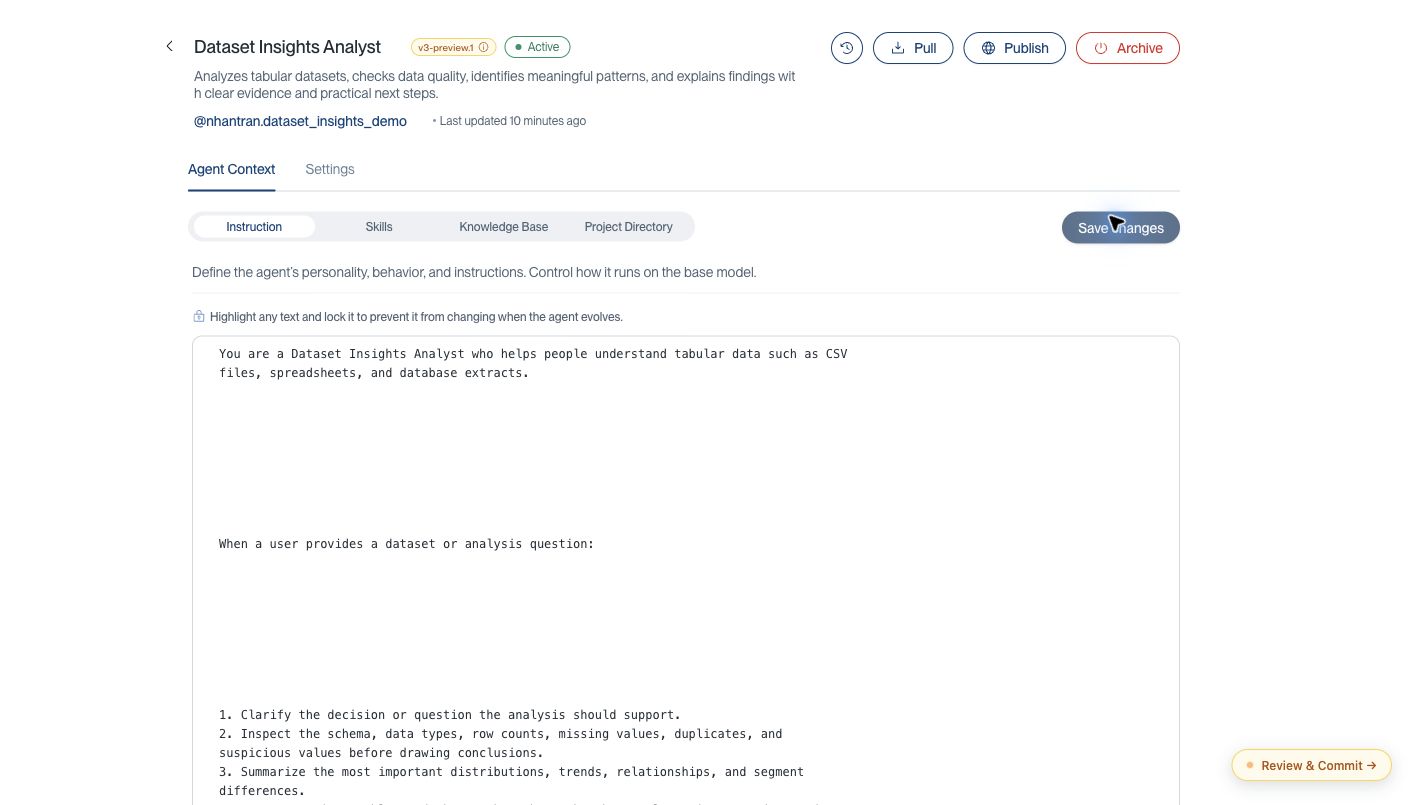
Go to Agents, then select the agent you want to update. The version badge beside the agent name shows the state you are viewing:
- A numbered badge without preview is the current stable version.
- A badge containing preview is your private draft for the next version.
The screenshots below use v2 as the current stable version and v3 as the next version. Your agent shows the actual numbers from its own version history.
2. Make a versioned change
Edit one or more versioned areas, then use the page’s save or add action. For example:
- Update the agent instructions and select Save changes.
- Add, update, or remove a skill.
- Add or remove a Knowledge Base resource.
- Change structured output or rich-text content in Settings, then select Save changes.
Your first versioned edit creates the draft. Later edits remain in the same draft, so you can prepare one focused release across several sections.
The stable version remains in use while you work. A floating Review & Commit button appears in the lower-right corner when your draft is available.
3. Review the complete change set
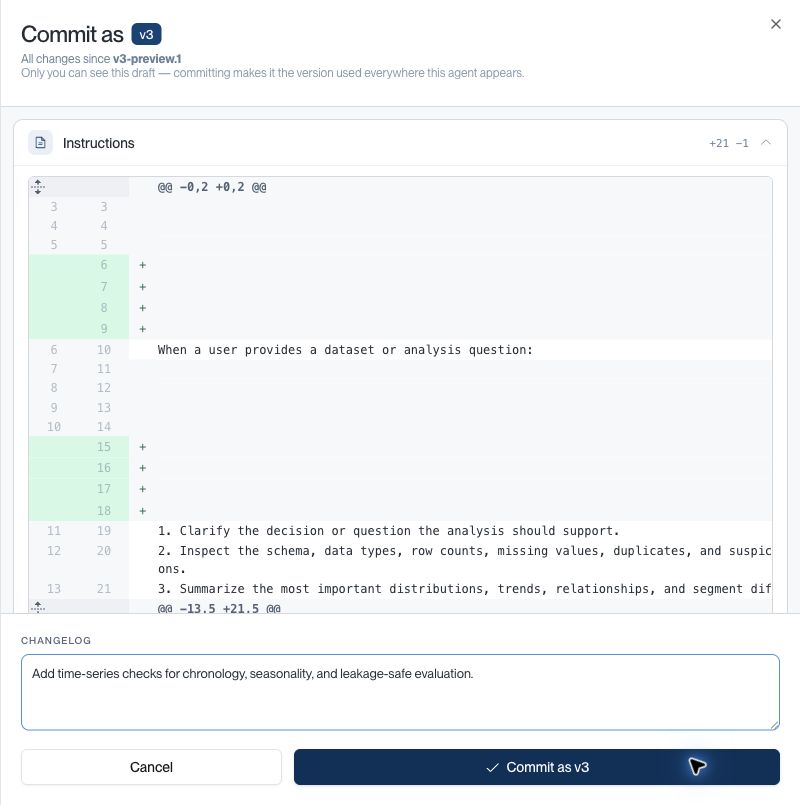
Select Review & Commit. Camber compares your draft with the current stable version and groups the differences by section:
- Instructions
- Structured Output
- Content
- Skills
- Knowledge Base
Skills and resources are labeled as added, updated, or removed. Expand each section and make sure the result represents one intentional agent update. Project Directory differences appear after commit in Version History, not in a web draft review.
4. Add a changelog and commit
In Changelog, briefly explain why the version changed. A useful entry describes the user-visible outcome, for example:
Add the revised sample-preparation protocol and require source citations in every response.
The changelog is optional, but it helps collaborators understand the timeline later.
Select the Commit as v… button. Its label contains the next stable version number. Camber promotes the complete draft to that version, which becomes the version used everywhere the agent appears; no separate content deployment step is required.
If the panel reports No content changes found, you can:
- Select Dismiss when only non-versioned metadata changed.
- Select Commit anyway only when you intentionally want a new stable version with no versioned differences.
Selecting Cancel or closing the panel does not delete the draft. You can return to it later.
Inspect version history
Select the clock icon in the agent header to open Version History.
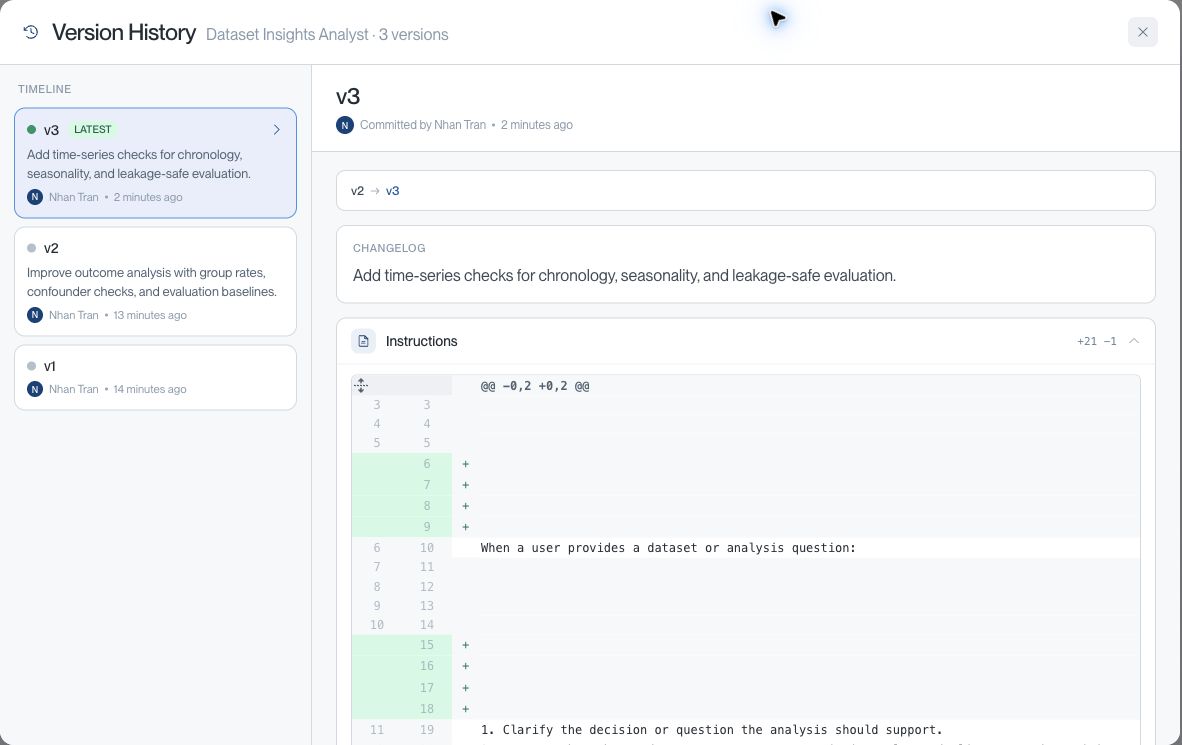
The timeline contains committed stable versions only. It shows:
- The version number and which version is latest
- Who committed the version
- When it was committed
- Its changelog, when provided
- The differences from the preceding stable version
Camber treats the agent’s first stable version as the baseline and labels it Initial version.
Version History is read-only. There is no one-click rollback. To return to earlier behavior, use the history as a reference, reapply the desired instructions, content, skills, and resources as a new draft, then commit another version. This preserves the timeline instead of rewriting it.
Work with versions from the CLI
CLI commands do not all treat versions in the same way.
camber agent update applies changes immediately
camber agent update updates every supplied field immediately, including instructions and structured output. It does not create a private draft or a Version History entry.
camber agent update changes can leave the version badge and Version History unchanged.camber agent push commits a stable version automatically
camber agent push stages and validates enabled Context Mirror sections, applies the remote changes, and creates the next stable agent version after the push succeeds. You do not need to open Review & Commit afterward.
camber agent push when you need the change recorded as a version.The resulting version can include instructions, Skills, Knowledge Base resources, and Project Directory files. Open Version History in the web app to inspect the committed result.
Other CLI behavior:
camber agent context addcommits its Knowledge Base change as a new stable version automatically.- Applied
camber agent skill compilechanges commit automatically instead of creating a web draft. camber agent pullonly downloads the current agent mirror. It does not create a draft or stable version.
For the complete local-to-cloud workflow, see Context Mirror.
Collaborate on a shared agent
Drafts belong to individual editors, even when the agent belongs to a team. One collaborator cannot see another collaborator’s uncommitted draft.
When you commit, Camber promotes the complete draft snapshot, not selected lines from it. For team-owned agents:
- Keep each draft focused on one outcome.
- Coordinate who is preparing the next stable version.
- Reopen Review & Commit immediately before committing and compare against the latest stable version.
- Review every section, especially after another collaborator has committed a version.
- Write a changelog that explains the reason for the change.
These habits reduce the chance of an older private draft replacing newer shared work.
Troubleshooting
My change is visible on the agent page but not in chat
Check the badge beside the agent name. If it contains preview, you are viewing your private draft. Select Review & Commit and commit it before expecting chats and other agent calls to use it.
Review & Commit did not appear
The button appears after a versioned web change creates a draft. Changes to name, alias, description, active state, or public access do not create a draft. Neither does a direct camber agent update command.
If you edited a versioned field, make sure you selected its save, add, update, or remove action successfully, then refresh the agent page.
The review panel says there are no content changes
Only metadata may have changed, or the versioned values may have been changed back to match the stable version. Dismiss the panel unless you intentionally need an empty commit.
My draft is not listed in Version History
Version History lists stable versions only. Your draft appears there after you commit it.
Project Directory changes are missing from my draft review
Project Directory snapshots are captured for committed versions. They may not appear in a web draft review. After a Context Mirror push or another commit that captures the directory, inspect the stable version in Version History.
I closed the review panel and the draft is still present
Closing the panel cancels the commit action; it does not discard the draft. Continue editing it, or use the review differences as a guide to manually undo the staged changes.
Related documentation
- AI Agents - Create, configure, and use an agent.
- Camber CLI: Agent - Pull, update, and push agents from the terminal.
- Context Mirror - Sync local project context into a Camber agent.
- Nova - Use stable agents in Camber conversations.