Agent Teams
What Are Agent Teams?
An agent team is a saved group of agents with one supervisor. Create a team once, then select it in chat whenever you want to use the same group.
You choose the supervisor from the team’s members. A team needs at least two agents in total: one supervisor and at least one other agent.
A saved team defines the lineup. An Agent Pod holds the main chat and individual agent chats for the work you start with it.
Before You Start
Select the workspace where you want to create the team. A team created in your personal workspace belongs to you; one created in a team workspace is shared with that workspace’s members.
Have at least two active agents available in that workspace. You can use existing agents or create your own. Check that the agents can access the data and connectors the task requires.
The Agent Teams tab appears when the feature is enabled for your account.
Create an Agent Team
1. Open Agent Teams
Open Agents in the sidebar, select Agent Teams, then select Create Team. If you have no teams yet, select Create Your First Team.
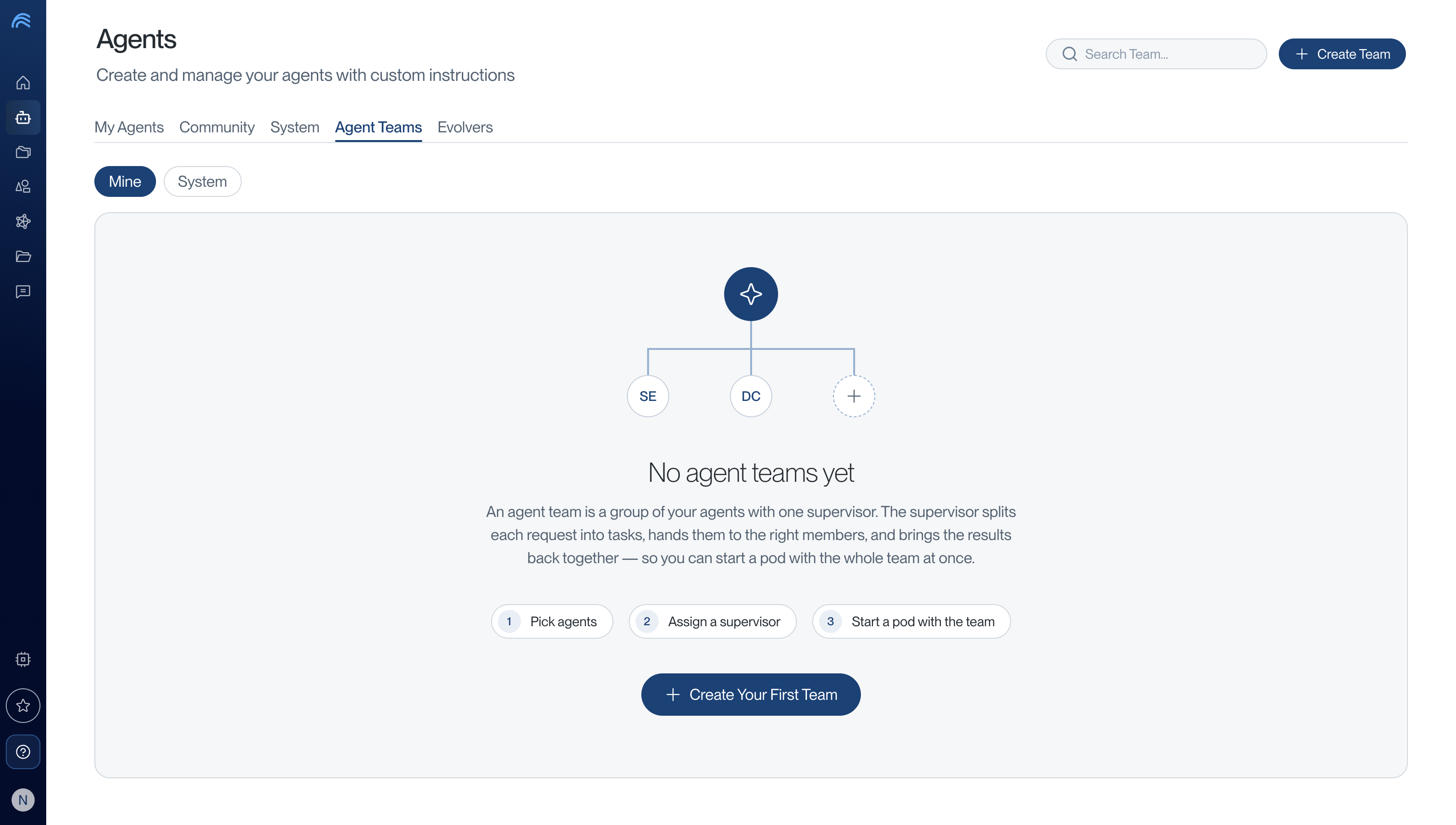
2. Add Agents
Search for agents and select at least two. Include the agent you want to supervise the team. The Your team panel shows your selection; you can remove an agent before continuing.
You can change the search term to find more agents without losing your previous selections.
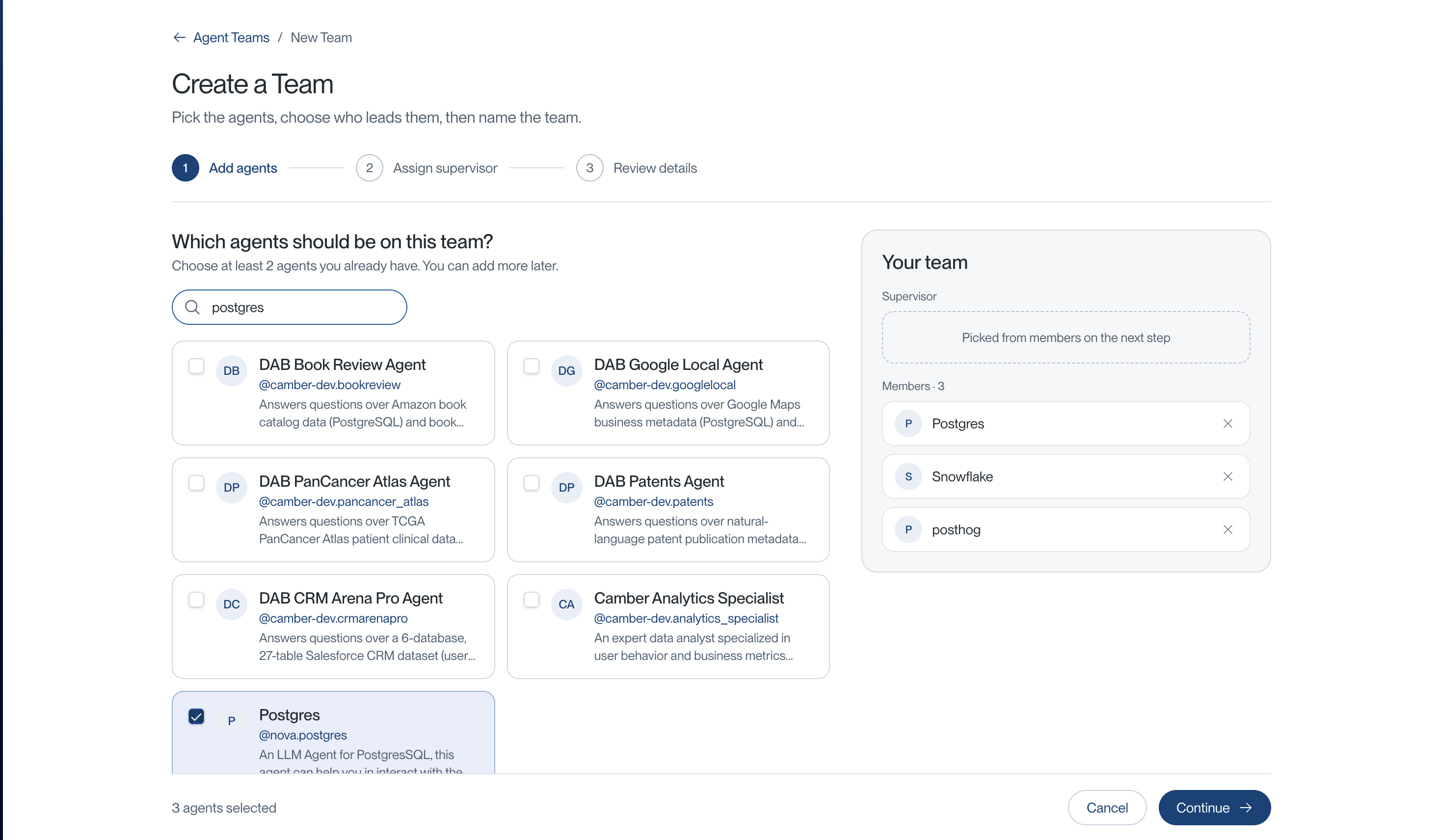
Select Continue.
3. Assign a Supervisor
Choose one of the selected agents as the supervisor. It appears under Supervisor in the Your team panel, while the other agents remain under Members.
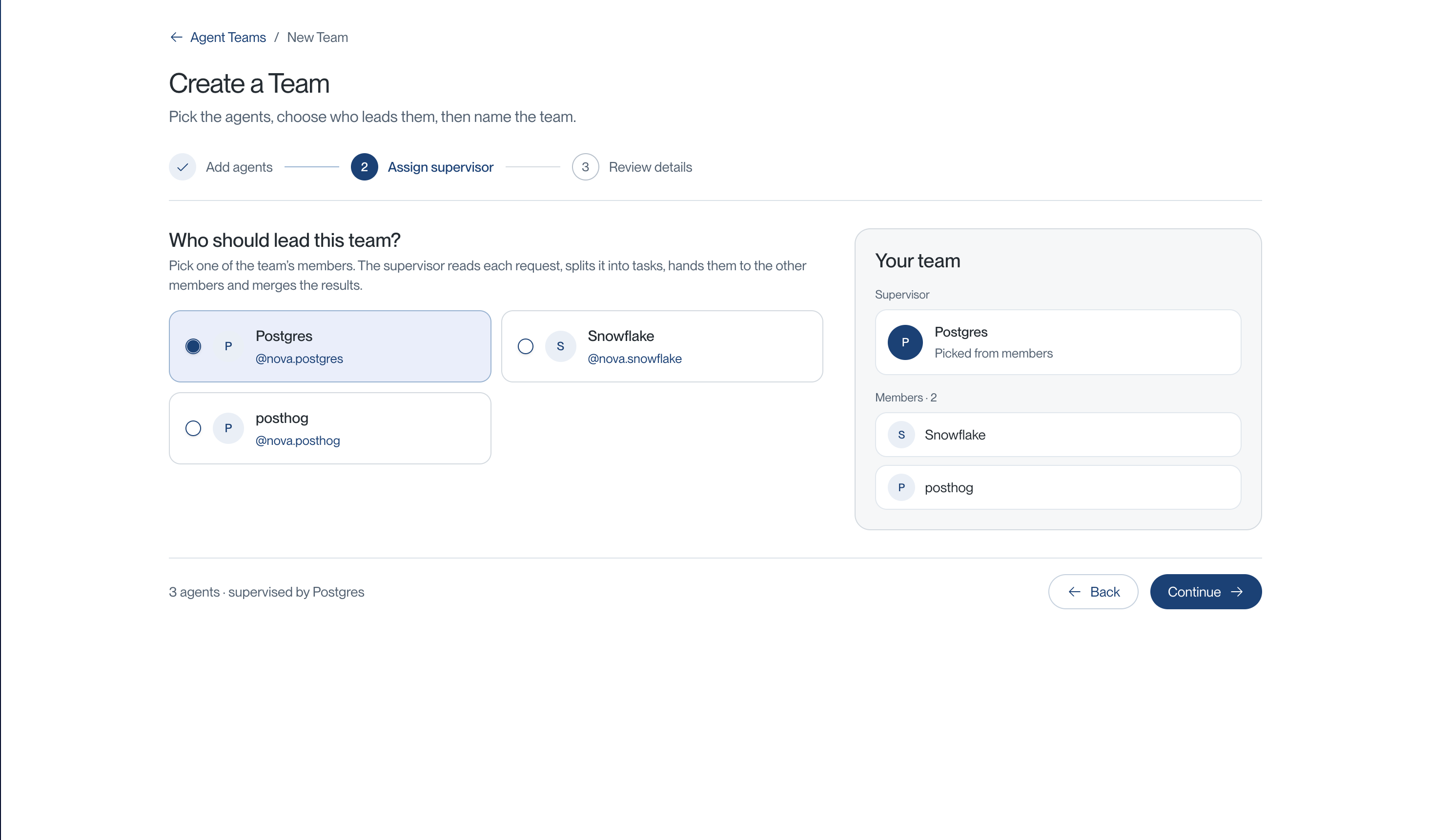
Select Continue.
4. Review Details and Save
Enter the team’s details:
| Field | What to enter |
|---|---|
| Team name | A recognizable name shown in the team list. |
| Handle | A short name used to find the team in chat. Use letters, numbers, hyphens, or underscores. It must be unique in the workspace. |
| Description | An optional explanation of what the team is for. |
The handle is filled from the name initially; you can edit it. Check that the preview shows the correct supervisor and selected agents, then select Save Team.
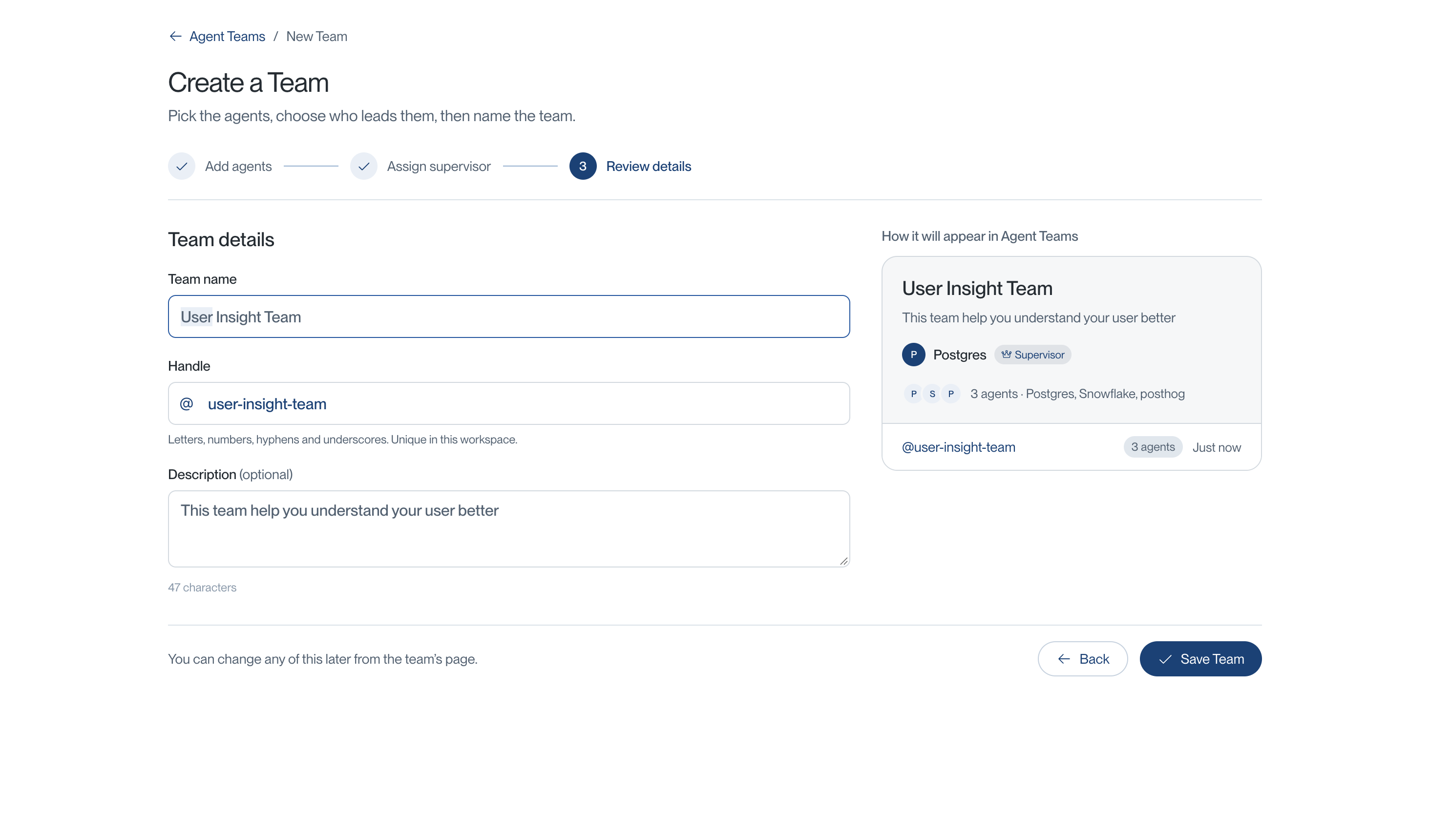
5. Find Your Saved Team
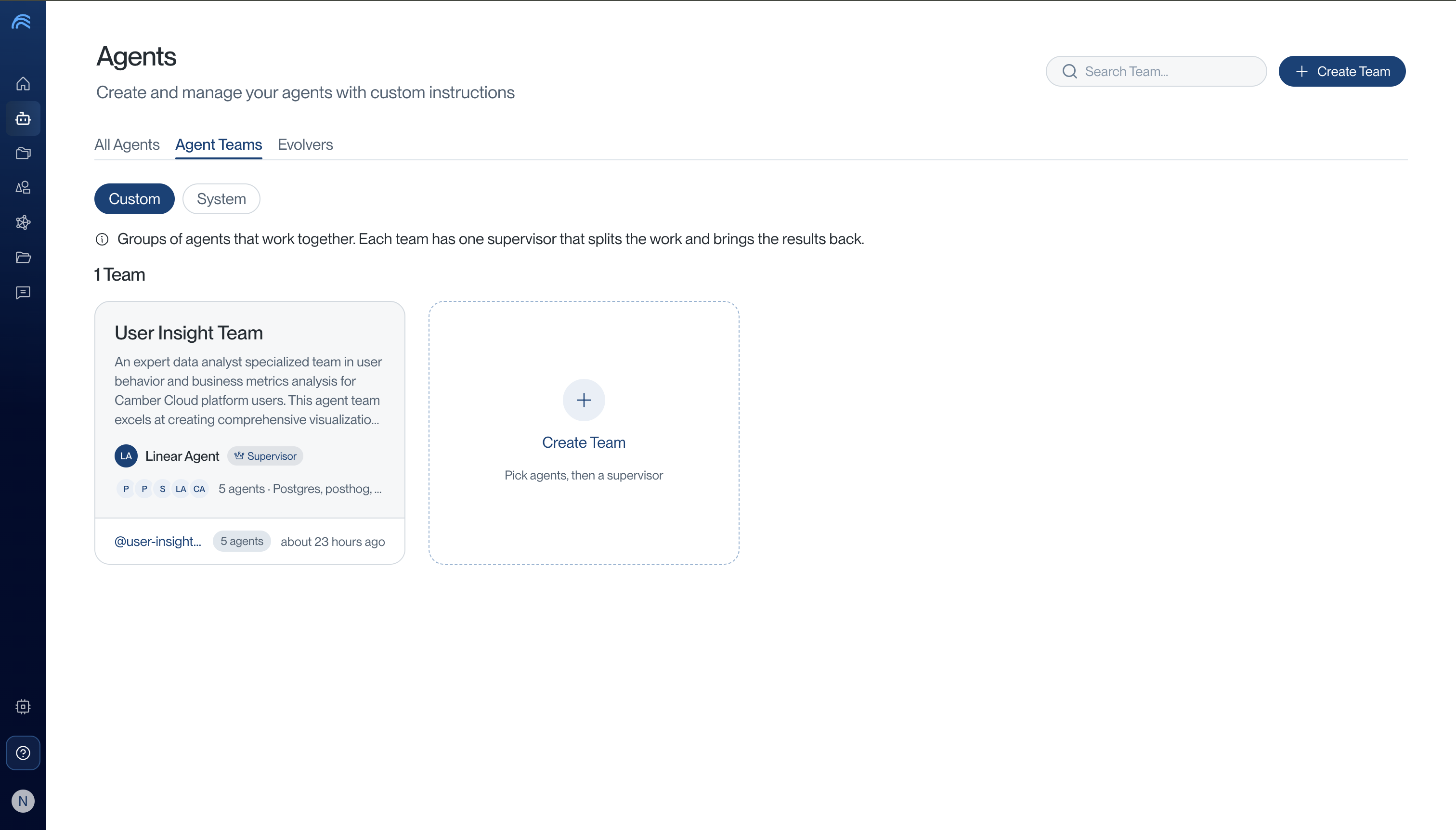
After saving, Camber returns to Agent Teams. Under Custom, find your team’s card. It shows the supervisor, description, and agent count. Select the card to open the team’s details.
Start a Pod with Your Team
6. Select the Team in Chat
Open a Nova chat:
- Type
@and search for your team’s name or handle. - Select your team under Agent Teams in the suggestions.
- Check the selected team above the message input, then enter your request and send it.
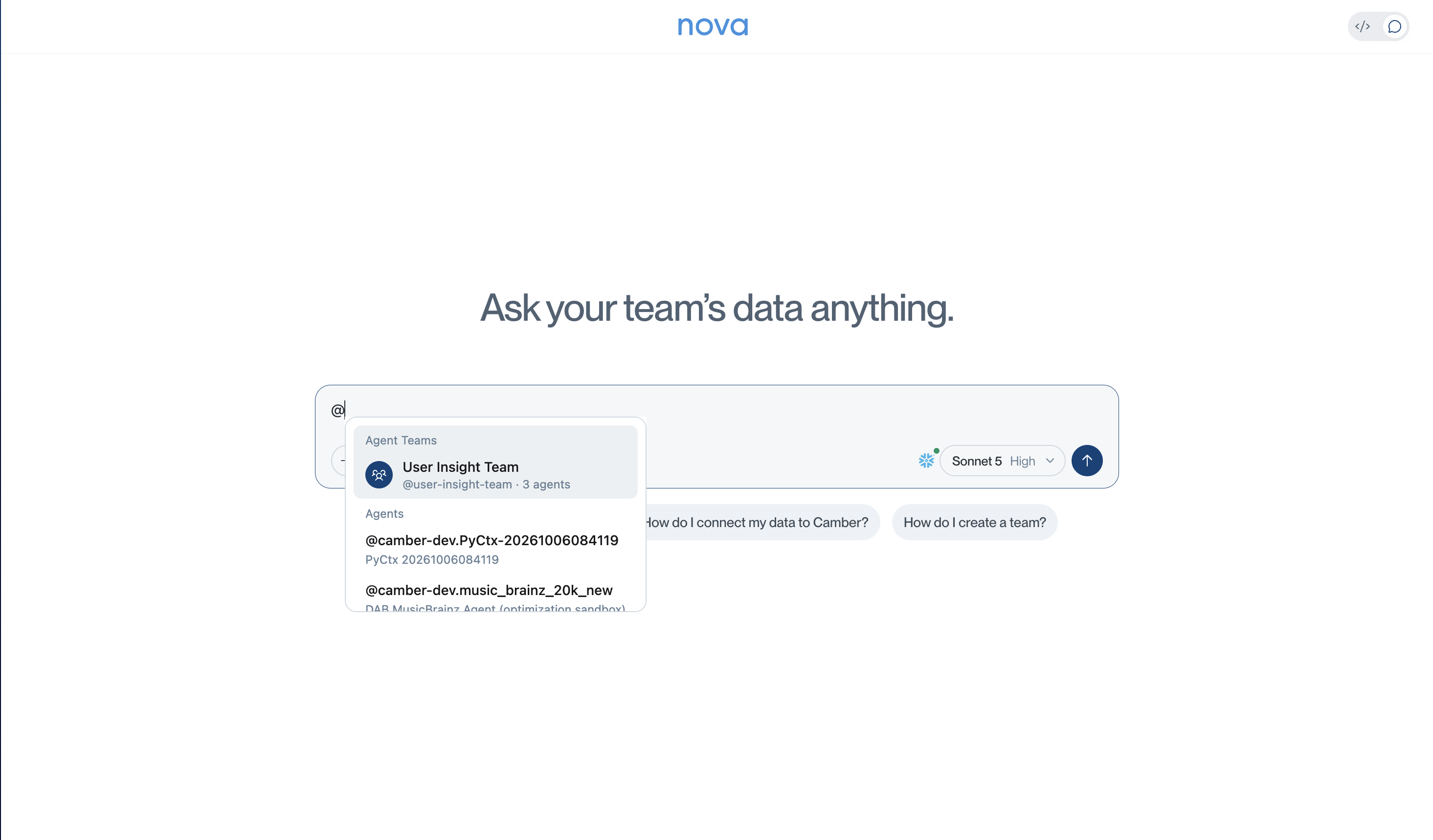
You can also open the team’s details and select Start Pod with Team. This opens a chat with the team already selected.
Alternatively, open Add to chat, choose Work with, and select the team. Select the team from the picker so Camber activates it; typing its name as ordinary message text does not select it.
You do not need to add the supervisor or each member separately after selecting a team.
Describe the Task and Expected Output
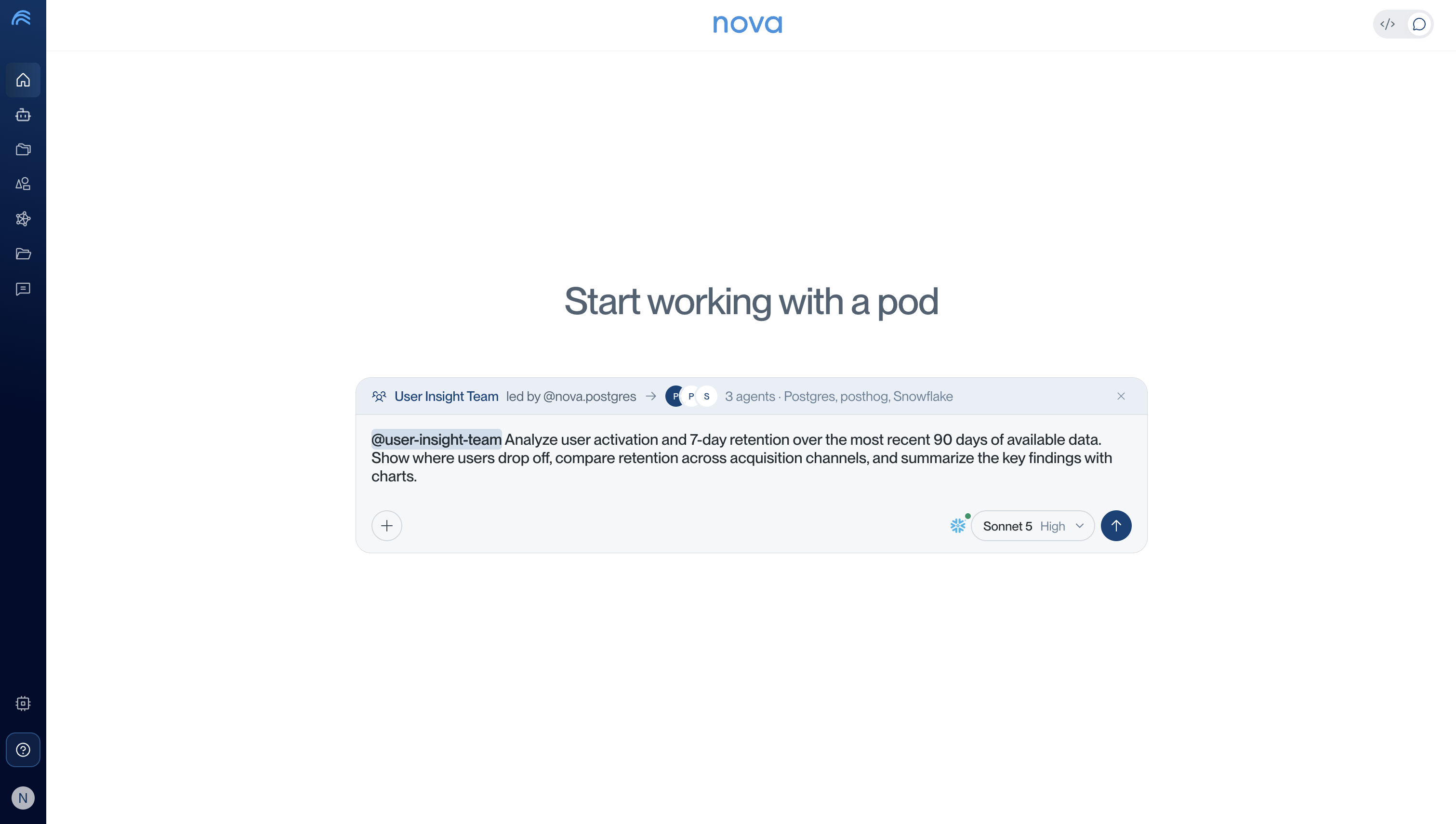
With your team selected, describe the question you want answered:
Analyze user activation and 7-day retention over the most recent 90 days
of available data. Show where users drop off, compare retention across
acquisition channels, and summarize the key findings with charts.
State the goal, time period, and output you need. Read the team’s answer in the main chat.
Check that the correct team is selected, then send the request.
Follow Progress and Continue the Work
While the request runs, the main chat shows the team and its supervisor above the response.
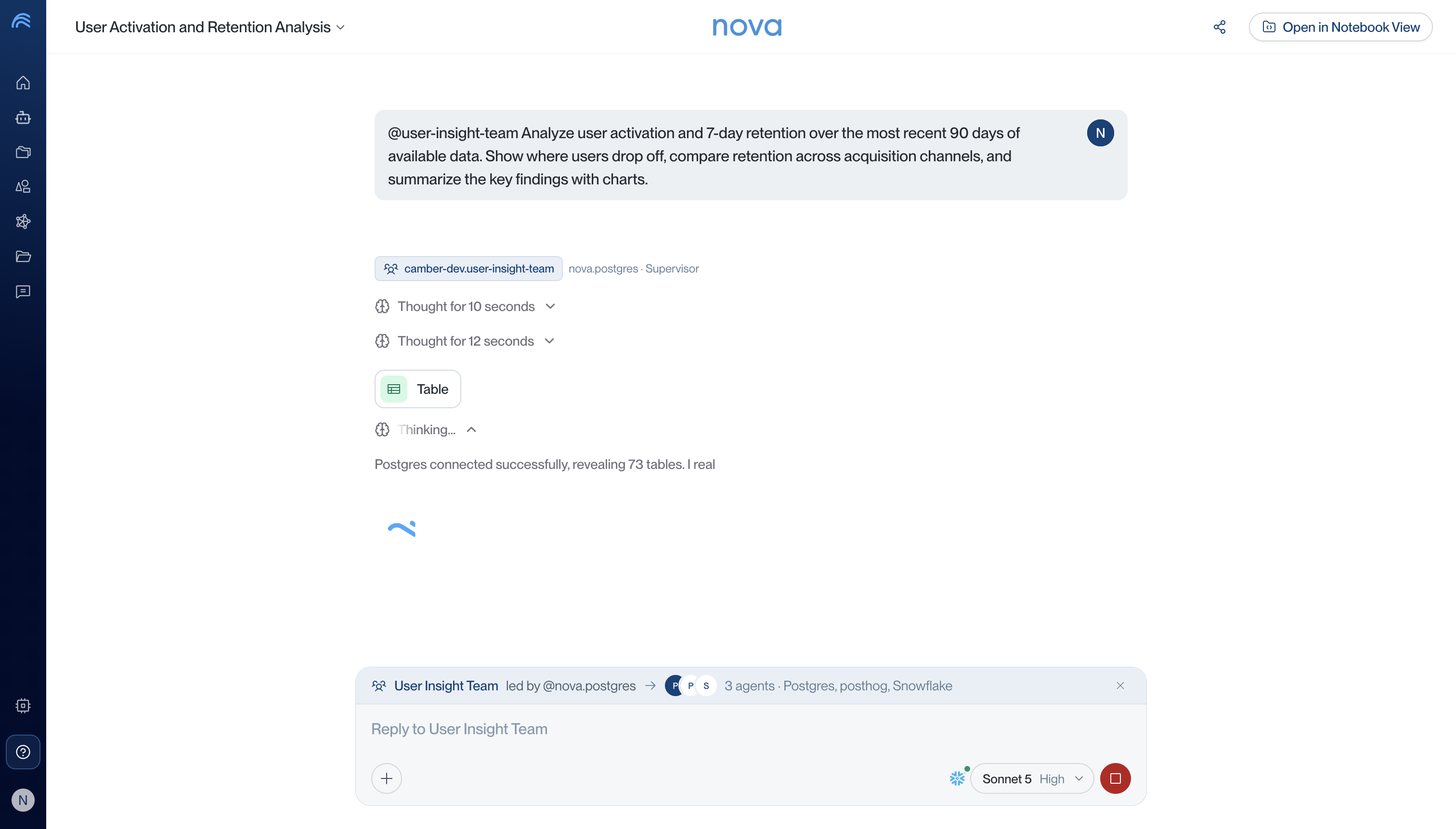
In the main chat, expand the running agents panel to check progress and open individual agent chats.
To reopen the work later, select Pods in the sidebar, then select the pod you want to review.
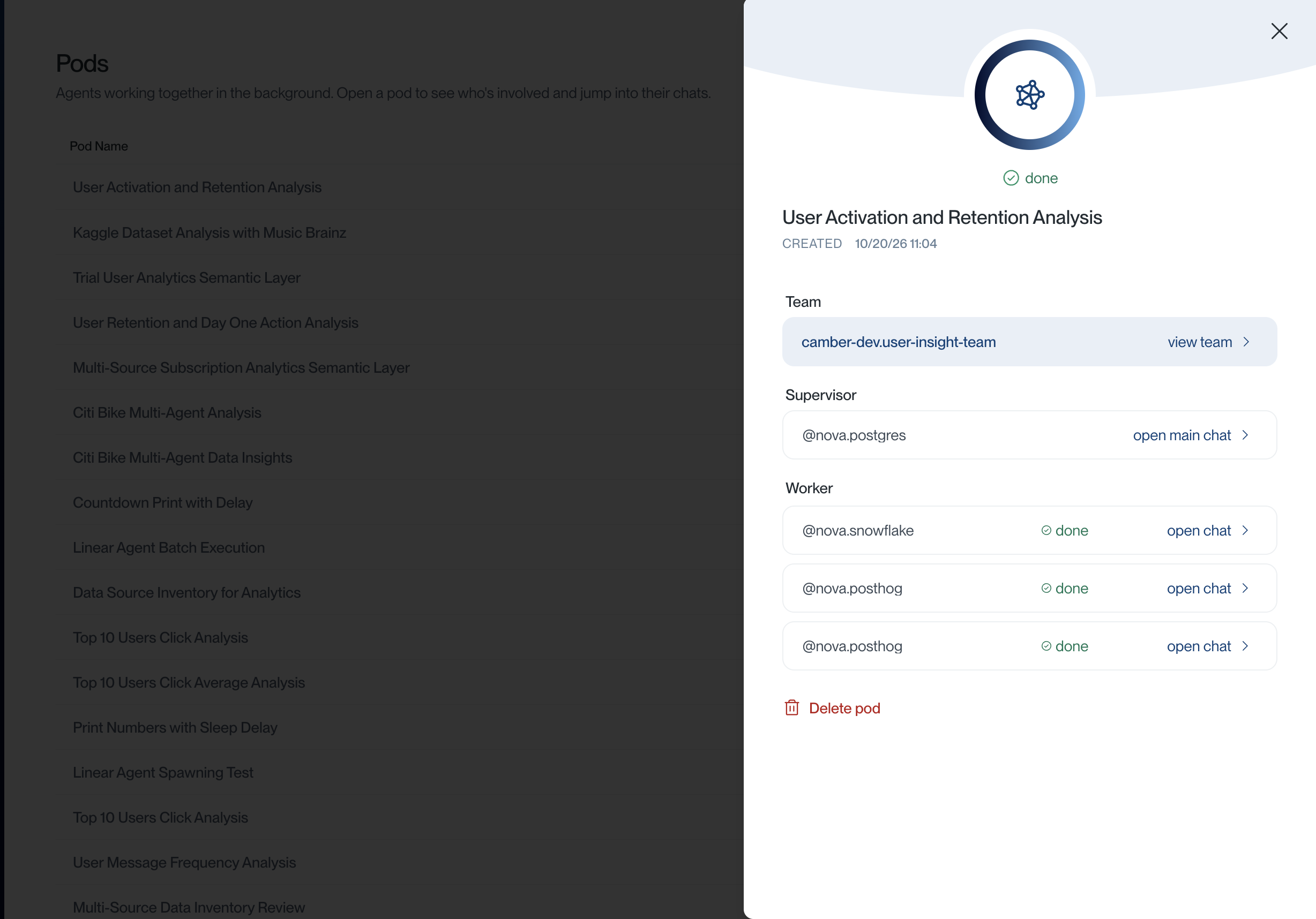
See Track Progress and Read Results for status meanings and how to inspect failures.
Send follow-up requests in the main chat. While the team is selected, the @ suggestions show its members.
A chat keeps its established supervisor. To work with another team or supervisor, start a new chat. If you remove the team selection using the Remove team button, you can select Return to [team name] from the @ suggestions to resume with it.
Edit or Delete a Team
Open Agents > Agent Teams, select the team, then select Edit Team. You can change its name, handle, description, supervisor, and members.
Use Add Agents to select more agents or Remove beside a member to remove it. Keep at least two agents in total, with one selected as supervisor. Select Save Changes when you are finished.
To remove the saved team, select Delete Team on the edit page and confirm Delete Team. This deletes the team and its handle. The individual agents remain available.
Troubleshooting
| Problem | What to check |
|---|---|
| Agent Teams is missing | Check that the feature is enabled for your account. |
| An agent is missing from the picker | Check that it is active and accessible in the selected workspace. |
| Continue is unavailable | Select at least two agents in Add agents, then choose one supervisor in Assign supervisor. |
| The team will not save | Check the name and handle. The handle must use the allowed characters and be unique in the workspace. |
| Another team cannot join the chat | Start a new chat for the other team. Each chat keeps its established supervisor. |
| A member did not run or failed | Check its individual chat and data access, then ask the team in the main chat to retry. |
Related Documentation
- Agents - Create and configure the agents in your team.
- Agent Pods - Track work, inspect agent chats, and stop or delete a pod.
- Workspaces - Choose where your team and resources belong.
- Data Connectors - Connect the data sources your agents need.