Agent Pods
What Are Agent Pods?
An Agent Pod brings several agents together to work on one request. Nova Boss (@nova.boss) supervises the pod, assigns tasks to the agents you select, runs independent tasks in parallel, and combines their answers in the main chat.
Use a pod when a task needs several specialties, such as checking a dataset’s quality and analyzing its trends. Each agent that runs has its own chat where you can inspect its task and results.
To reuse the same agents with a supervisor of your choice, save an Agent Team and select Start Pod with Team from its page. The steps below describe selecting agents for a pod with Nova Boss.
Before You Start
Choose existing agents or create your own. Describe each agent’s responsibilities in its description and instructions so Nova Boss can assign tasks that fit.
Start a Pod
1. Select Nova Boss
Open a Nova chat, type @nova.boss, and select Nova Boss from the mention suggestions. The chat input shows nova.boss and Type @ to add agents.
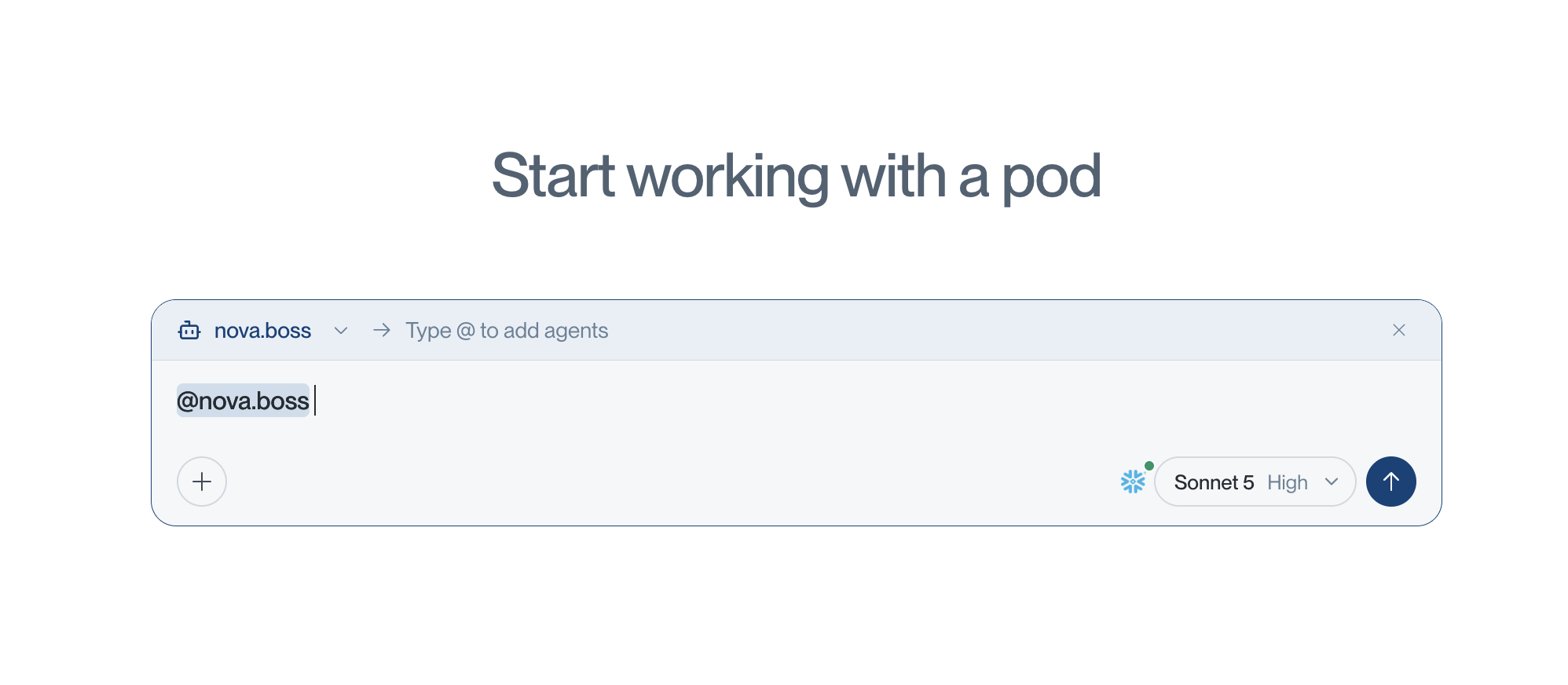
You can also open Pods in the sidebar and select Start a pod. This opens a new chat with Nova Boss already selected.
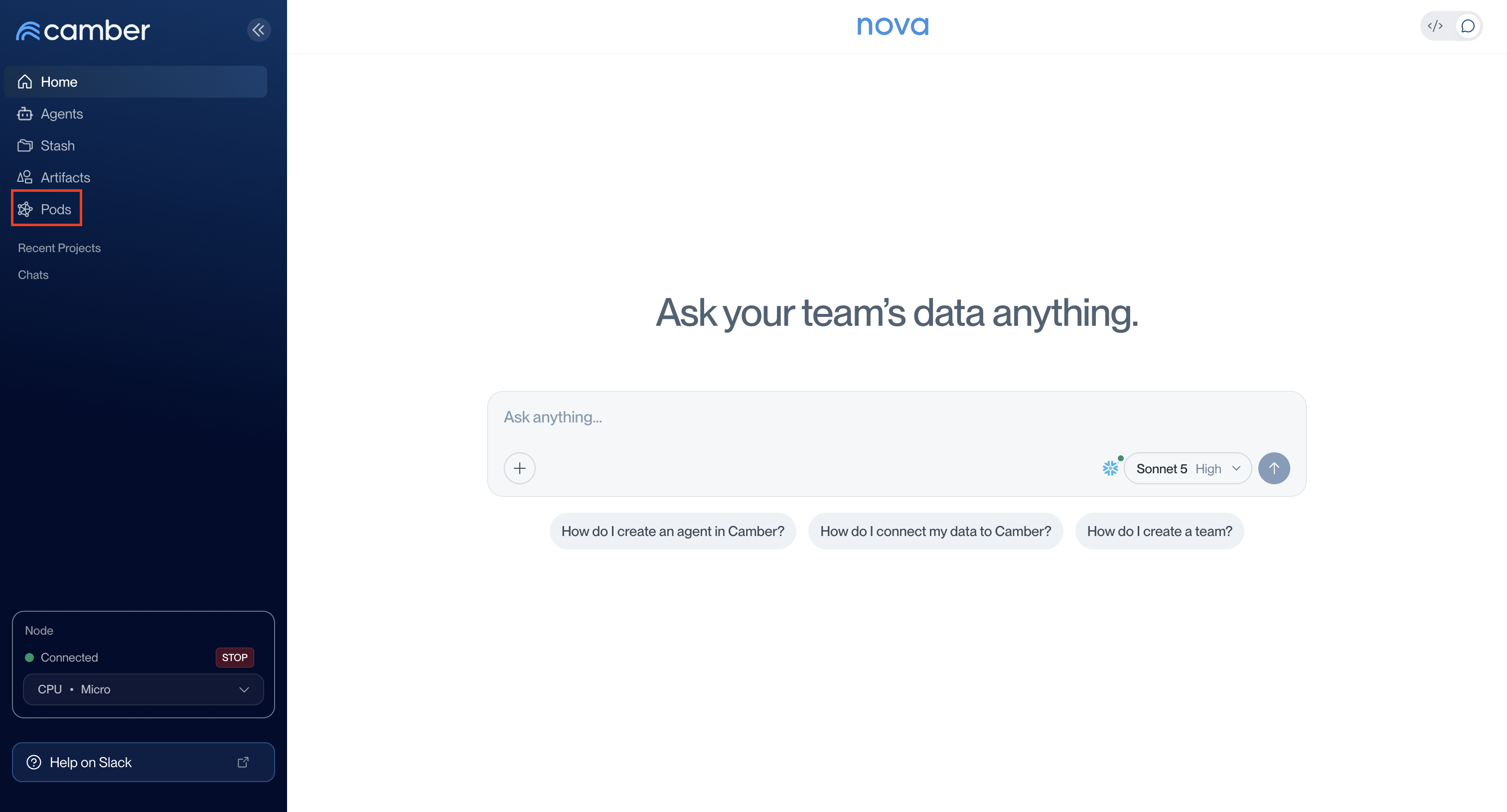
@nova.boss to coordinate agents as a pod. Mentioning several agents in a normal chat does not enable pod coordination. Start a pod selects Nova Boss for you, so you do not need to tag it again.2. Add Agents and Describe the Task
With Nova Boss selected, type @ and choose each agent from the suggestions. Check the selected agents above the input, then describe the task and the output you want.
For example, with station metadata in PostgreSQL and Citi Bike trips in Snowflake:
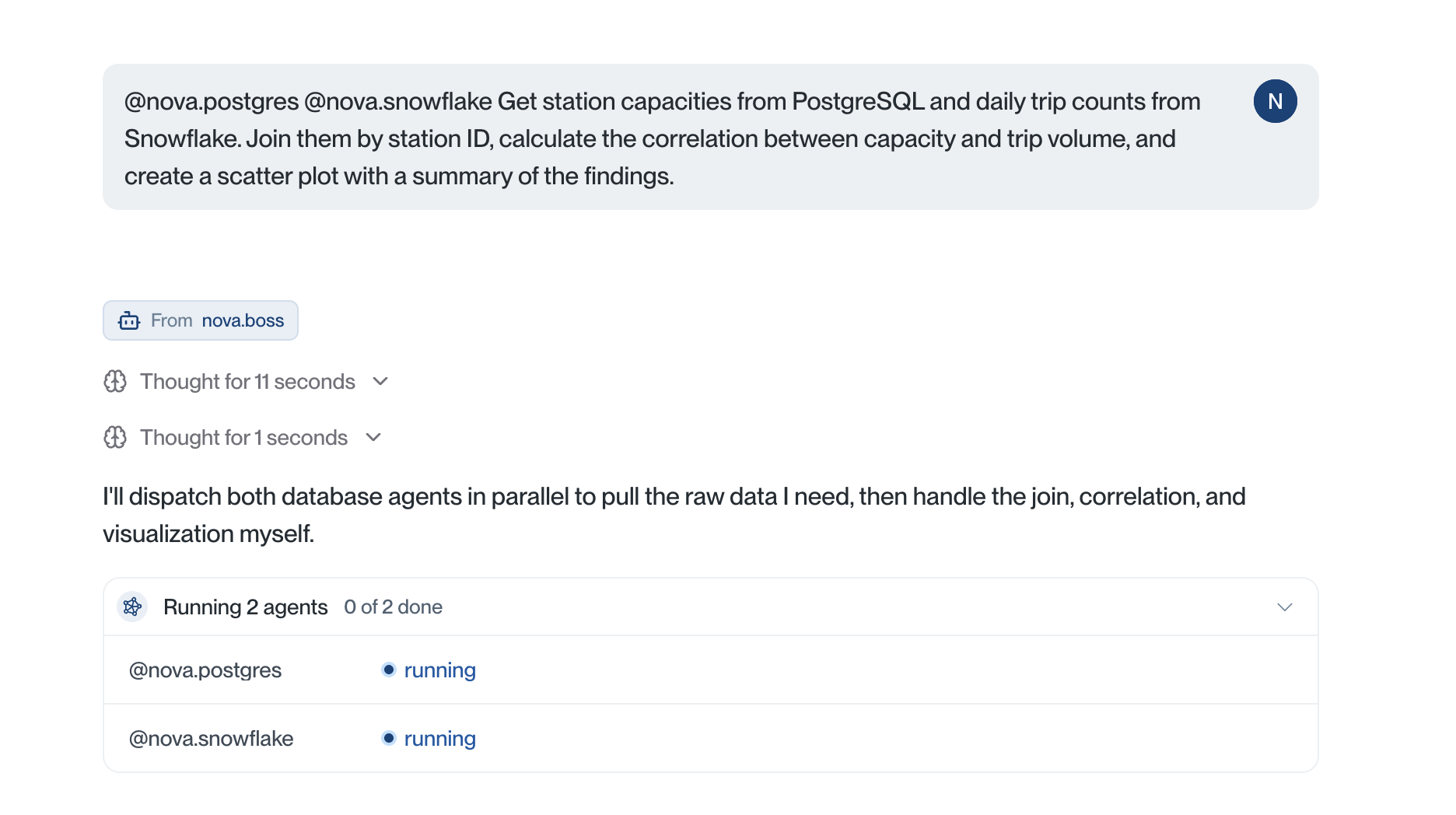
@nova.postgres @nova.snowflake
Get station capacities from PostgreSQL and daily trip counts from Snowflake.
Join them by station ID, calculate the correlation between capacity and
trip volume, and create a scatter plot with a summary of the findings.
Use agents and datasets available to you. Select mentions from the suggestions; pasting handles as plain text does not add the agents.
3. Send the Request
Send the message. Nova Boss assigns tasks to the selected agents and combines their results when they finish. It may use only some of the selected agents, depending on the request.
Each agent that runs gets a separate chat. Your conversation appears under Pods once it has these agent chats. Selecting Nova Boss alone does not create a pod listing.
In the main chat, expand Running 2 agents to see each agent’s status. Select open chat when the link appears to inspect an agent’s response.
Track Progress and Read Results
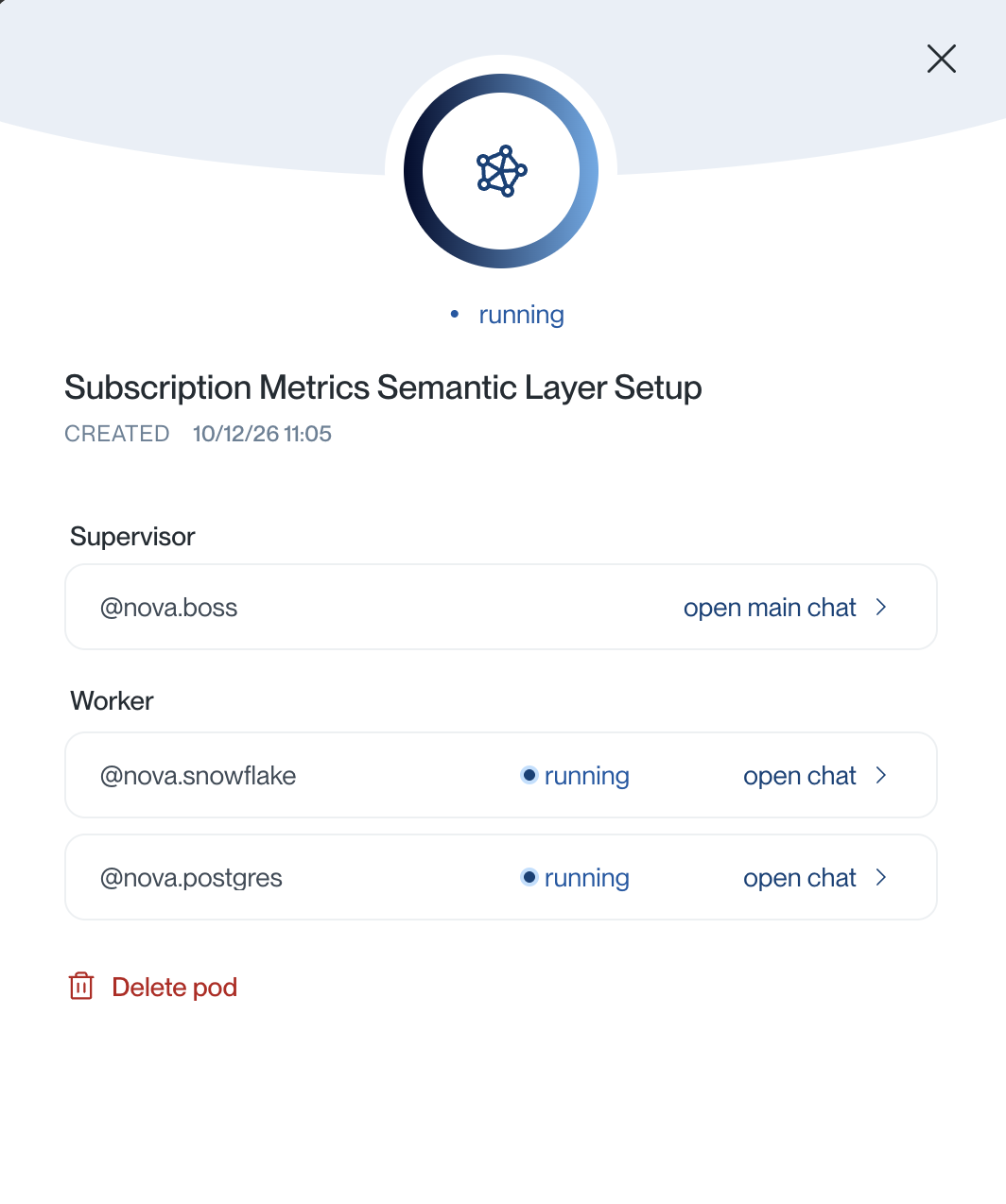
Open Pods in the sidebar and select a pod to see its details:
- Supervisor: Select open main chat to read Nova Boss’s combined answer or send a follow-up.
- Worker: This section lists the agents running tasks. Check each agent’s status and select open chat to inspect its assigned task and response.
The pod chat navigation bar also lets you switch between the main chat and agent chats. It shows how many agent chats are done and flags failed or cancelled runs.
| Status | Meaning |
|---|---|
| running | The chat is processing a request. |
| done | The chat has finished its current turn. |
| failed | The run encountered an error. Open the chat for details. |
| cancelled | The run was stopped. |
Review each agent’s status as well as the main answer. A finished supervisor turn does not mean every agent succeeded, and done does not guarantee the analysis is correct.
Stop or Delete a Pod
To stop the current run, open the main chat and select the stop button in the chat input. This requests cancellation of the supervisor and its running agents. You can inspect the saved chats afterward.
To delete a pod, open its details from Pods, select Delete pod, and confirm Delete.
Troubleshooting
| Problem | What to Check |
|---|---|
| Adding an agent replaces Nova Boss | Confirm Agent Pods is available and nova.boss is selected before adding agents. Look for Type @ to add agents. |
| An agent is missing from the suggestions | Check that it is active and you have access to it in the selected workspace. See Agents. |
| The conversation is missing from Pods | A conversation appears only after Nova Boss creates at least one agent chat. Check whether it delegated any tasks. |
| An agent did not run on a follow-up | Select its mention again in the new message and state what you want it to do. |
| An agent failed | Open its chat, check the error and data access, then ask Nova Boss in the main chat to retry with that agent selected. |
| Pods or pod details will not load | Refresh the Pods page, or close and reopen the details panel. |
Related Documentation
- Agents - Create and configure specialized agents.
- Agent Teams - Save a group of agents and a supervisor to use together again.
- Nova AI - Work with data and files through chat.
- Workspaces - Choose your personal or team workspace.
- Data Connectors - Connect external data sources for agent workflows.