Agent Labs
Agent Labs answers one question: how often does my agent get it right?
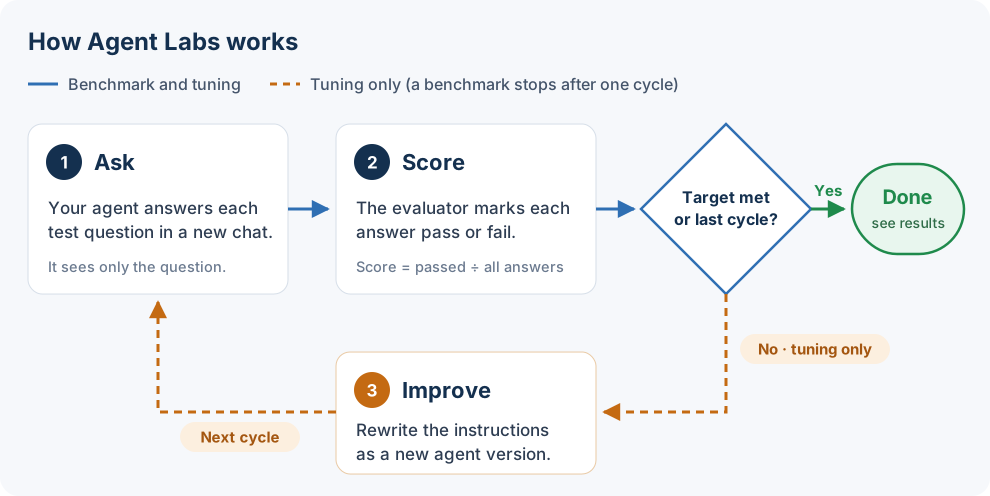
You write a few questions whose answers you already know. Camber asks your agent each question, checks every answer, and gives you a score. If the score is too low, Camber can tune the agent for you: it studies the wrong answers, improves the agent’s instructions, and tests again until the agent reaches your target.
Key Terms
| Term | What it means |
|---|---|
| Eval | A set of test examples for one agent. Create one eval per agent and topic, for example Citi Bike Snowflake - trips and weather. |
| Test example | One question and the answer you expect. The agent sees only the question. |
| Evaluator | Decides if an answer passes. It reads the expected output; the agent never does. |
| Benchmark | Scores the agent’s current version once. Nothing about the agent changes. |
| Tuning | Scores the agent, improves its instructions, and repeats until it reaches the target score or the cycle limit. |
| Cycle | One round of tuning: ask every question, score every answer, then improve the instructions. |
| Repetition | How many times each question is asked in a cycle. Each repetition is a fresh chat. |
| Score | Passed answers divided by all answers in a cycle, from 0 to 1. With 4 examples and 1 repetition, 3 passed answers score 0.75. |
Before You Start
- Have an agent to test. It must be active in the current workspace.
- Make sure the agent can reach the data it needs, for example through a data connector.
- Know the right answers to your questions. Run the queries yourself first, so you’re sure the expected outputs are correct.
Step 1: Open Agent Labs
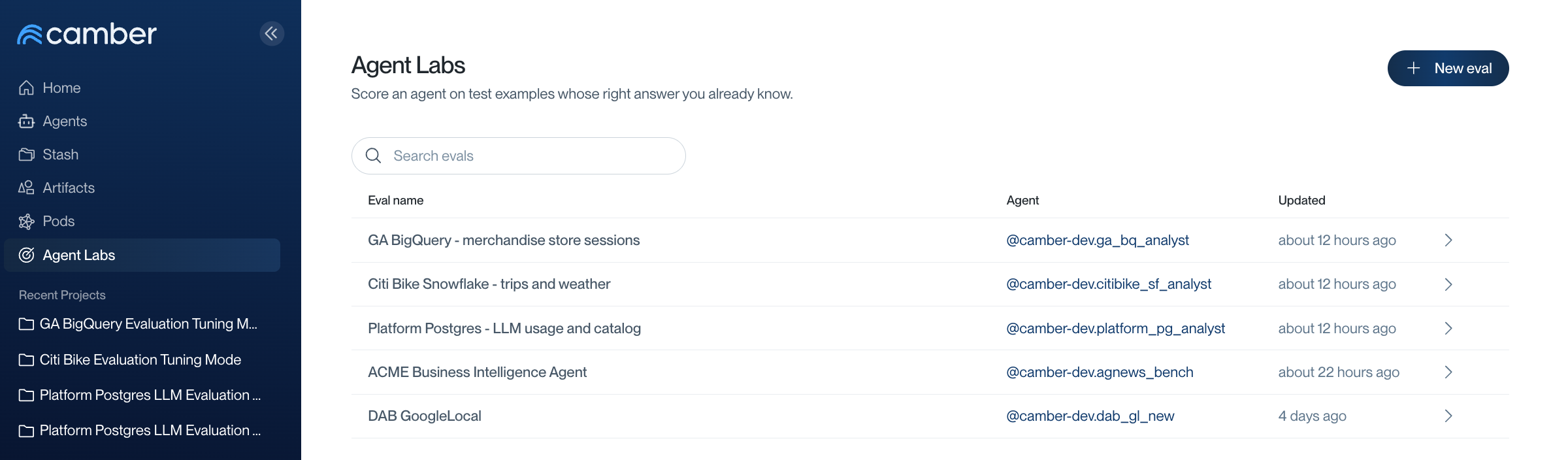
Select Agent Labs in the sidebar. The list shows every eval in your workspace, the agent each one tests, and when it was last updated.
Step 2: Create an Eval
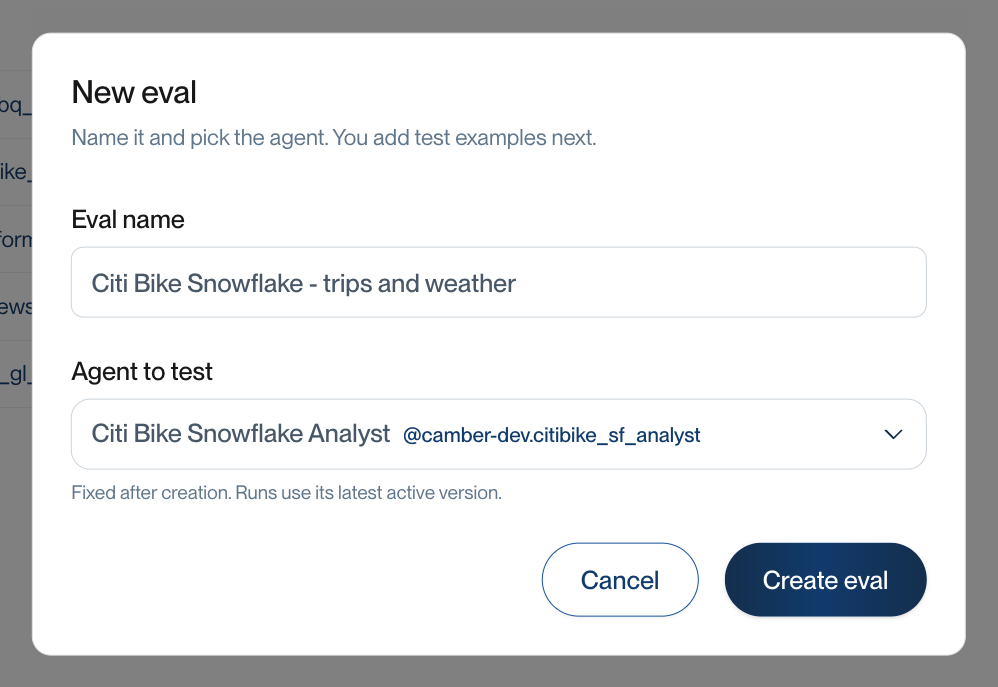
- Select New eval.
- Enter an Eval name that says what is tested, for example Citi Bike Snowflake - trips and weather.
- Under Agent to test, search for the agent and select it.
- Select Create eval.
Step 3: Add Test Examples
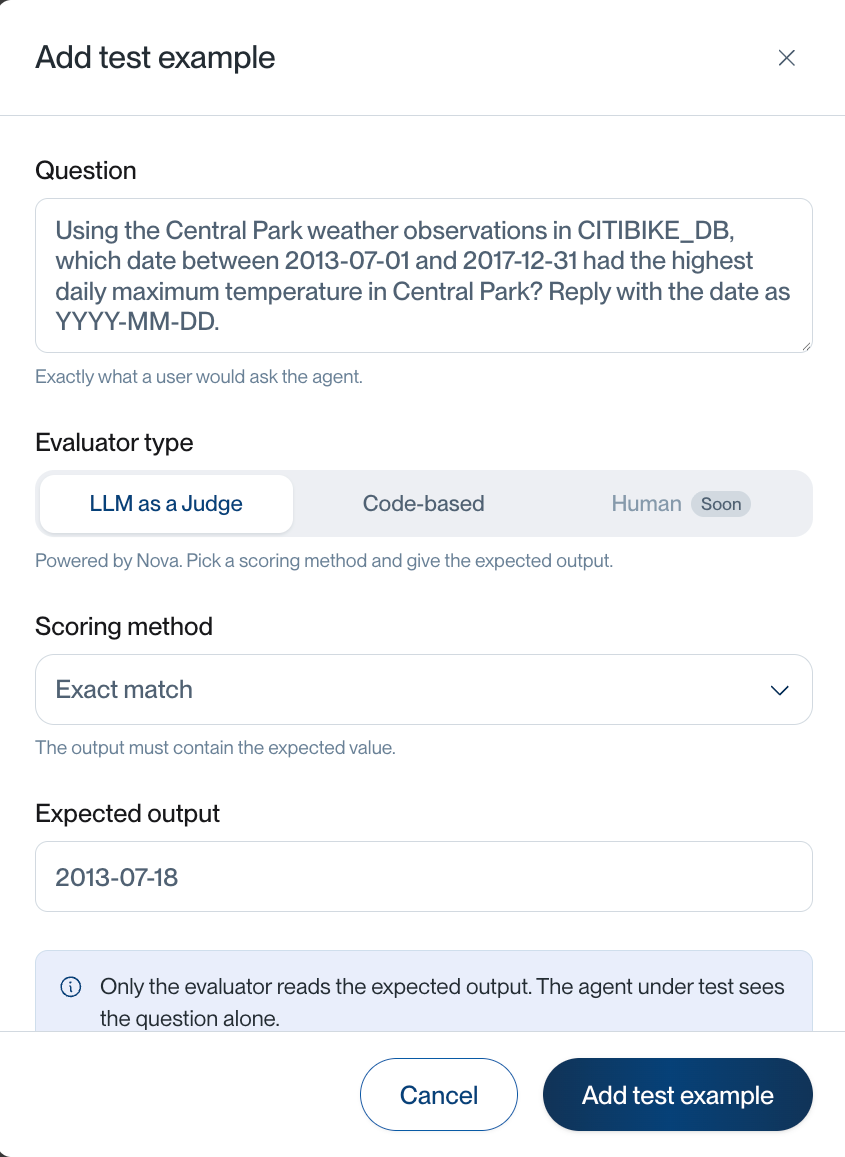
Open the eval, select the Test examples tab, then select Add test example.
- In Question, write exactly what a user would ask the agent.
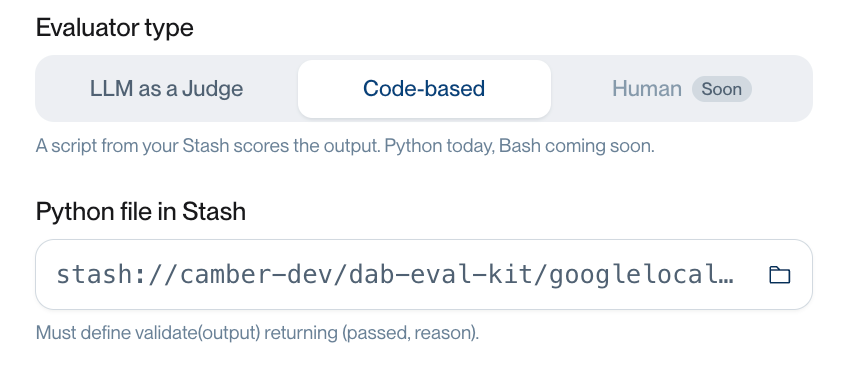
- Under Evaluator type, choose how the answer is checked:
- LLM as a Judge: Nova checks the answer with a scoring method you pick. This is the easiest option.
- Code-based: your own Python script checks the answer.
- Fill in the expected output, then select Add test example.
Choose a Scoring Method
With LLM as a Judge, open Scoring method and pick the one that fits the answer.
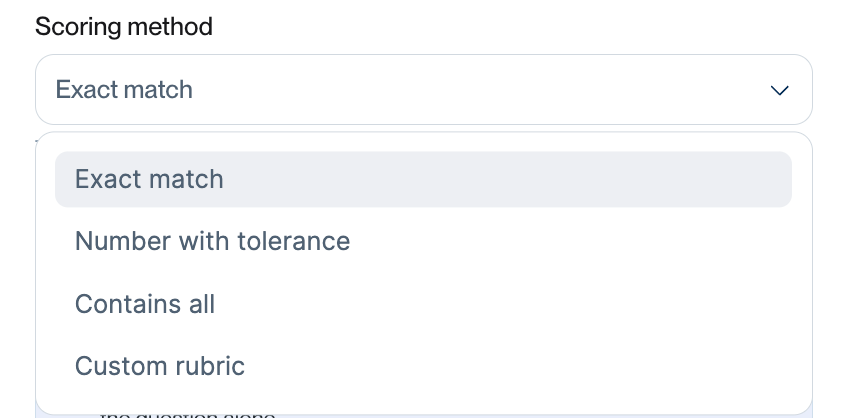
| Scoring method | Use it when the answer is… | Passes when… | Example |
|---|---|---|---|
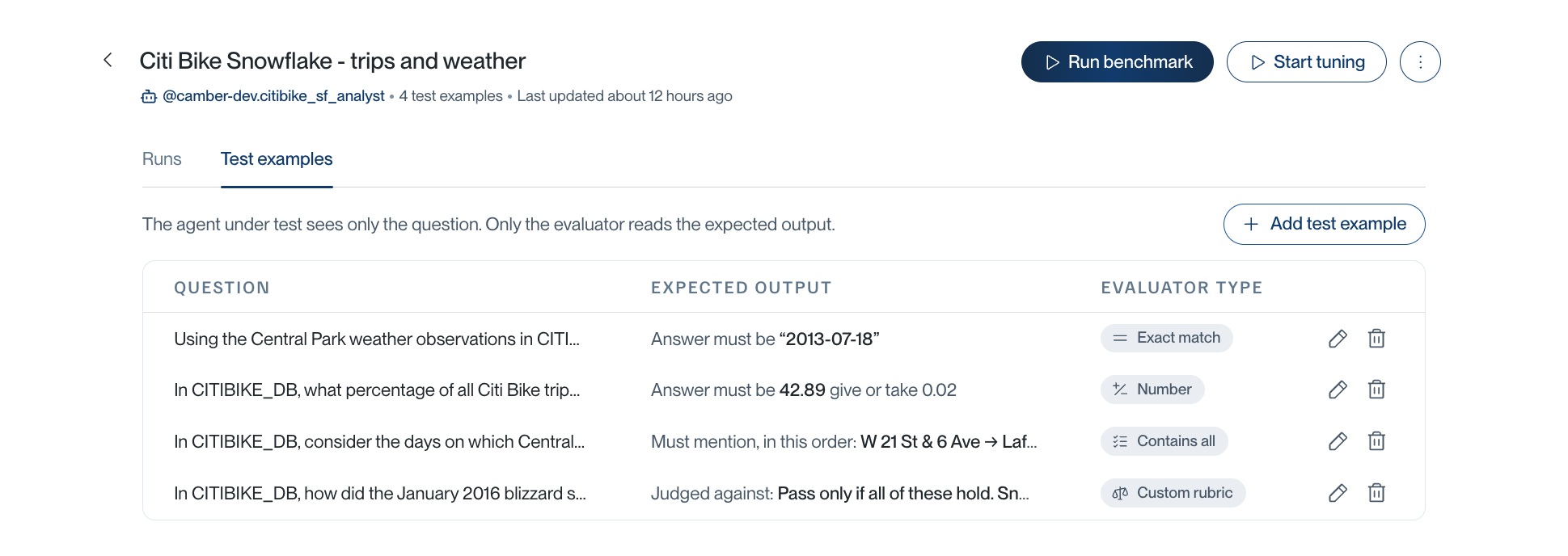
| Exact match | One value: a date, a name, an ID | The answer contains the expected value exactly | 2013-07-18 |
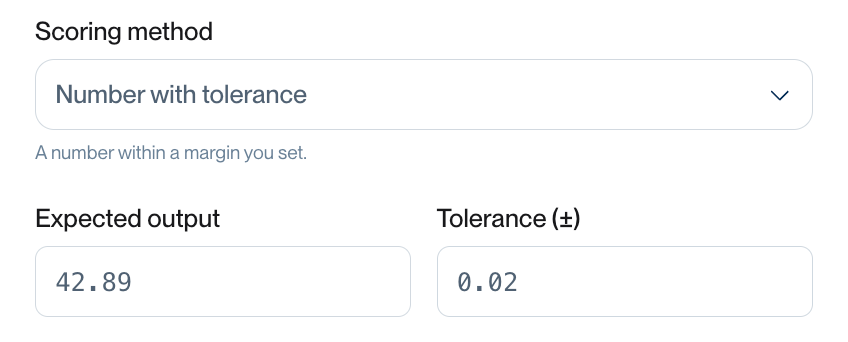
| Number with tolerance | A number that may be rounded | A number in the answer is within ± the tolerance | 42.89 ± 0.02 |
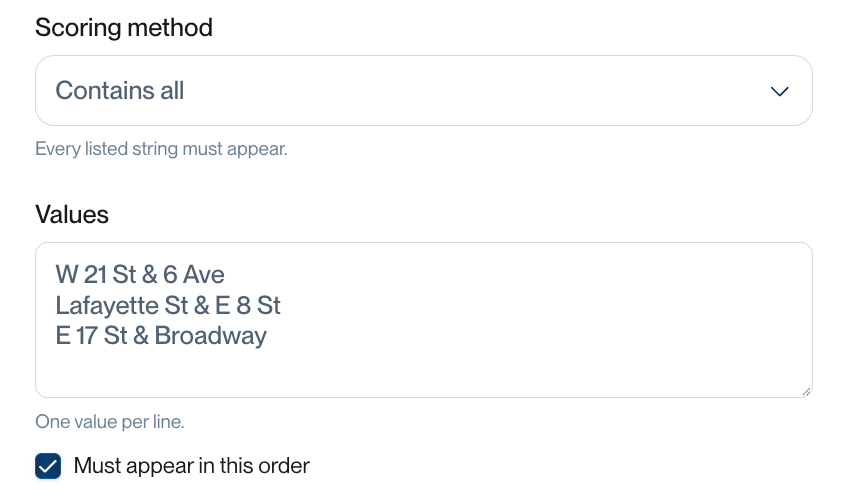
| Contains all | A list of items | Every value appears; with Must appear in this order, in that order too | Top 5 stations, most to fewest trips |
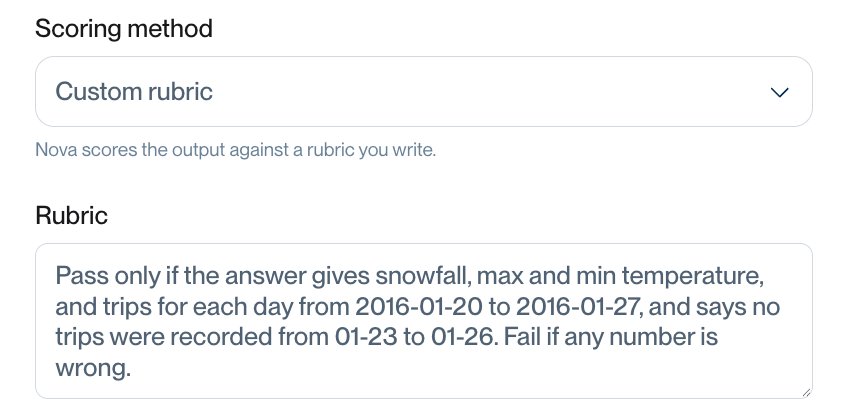
| Custom rubric | An explanation or a table with several facts | Nova judges the answer against the rules you write | “Pass only if all of these hold…” |
Number with tolerance takes the expected number and how far off an answer can be.
Contains all takes one value per line. Select Must appear in this order when order matters, such as a ranking.
Custom rubric lets you describe a passing answer in plain words. Be specific: list the numbers that must appear and say what makes the answer fail.
Use your own Python script (Code-based)
Select Code-based, then choose a .py file from your Stash. The file must define a validate(output) function that returns (passed, reason):
def validate(output: str) -> tuple[bool, str]:
    expected = ["Maze Pen", "Google 22 oz Water Bottle", "Google Sunglasses"]
    missing = [name for name in expected if name not in output]
    if missing:
        return False, f"Missing: {', '.join(missing)}"
    return True, "All products found"
output is the agent’s full answer. reason is shown in the results, so make it say what is wrong.
When you’re done, the Test examples tab lists each question, its expected output, and its evaluator type. Use the pencil icon to edit an example and the trash icon to delete one.
Tips for good test examples
- Ask real questions. Write them the way your users ask them.
- Make the answer checkable. Ask for a format, for example “Reply with the date as YYYY-MM-DD” or “Round to two decimals”.
- Fix the time window. If the data keeps changing, add a date range so the right answer stays the same.
- Cover the hard parts. Include questions that need a tricky join, a unit conversion, or a known data quirk. These are the questions tuning can fix.
- Mix the scoring methods. One exact value, one number, one list, and one explanation make a good starting set.
- Don’t reveal the answer in the question. The agent should have to find it.
Step 4: Run a Benchmark
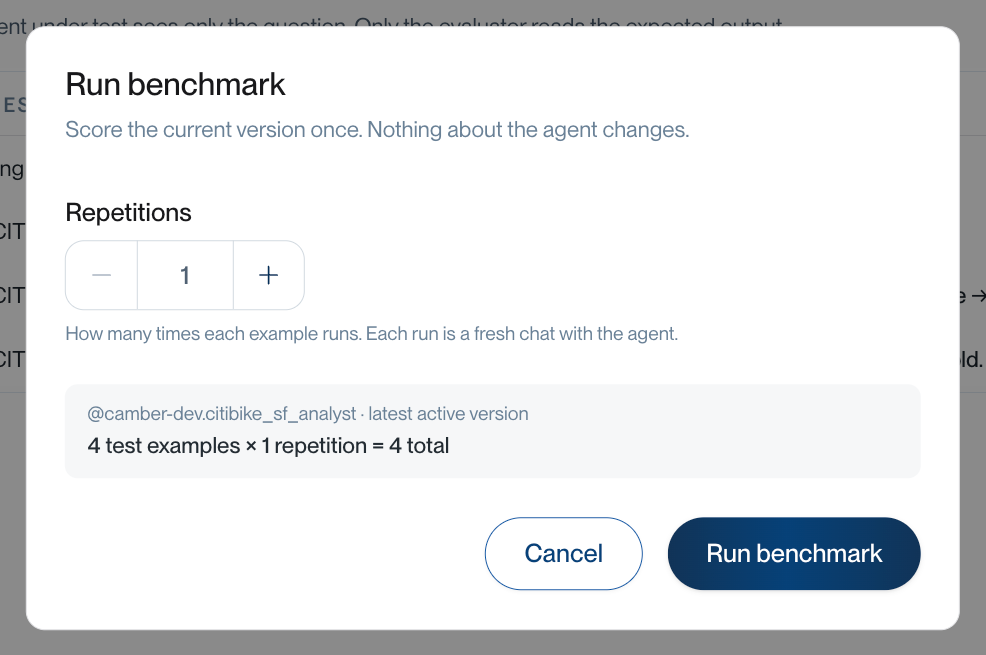
A benchmark tells you how good the agent is today. It doesn’t change the agent.
- Select Run benchmark.
- Set Repetitions. Use more than 1 to see if the agent answers the same way every time.
- Check the total number of runs, then select Run benchmark.
Step 5: Start Tuning
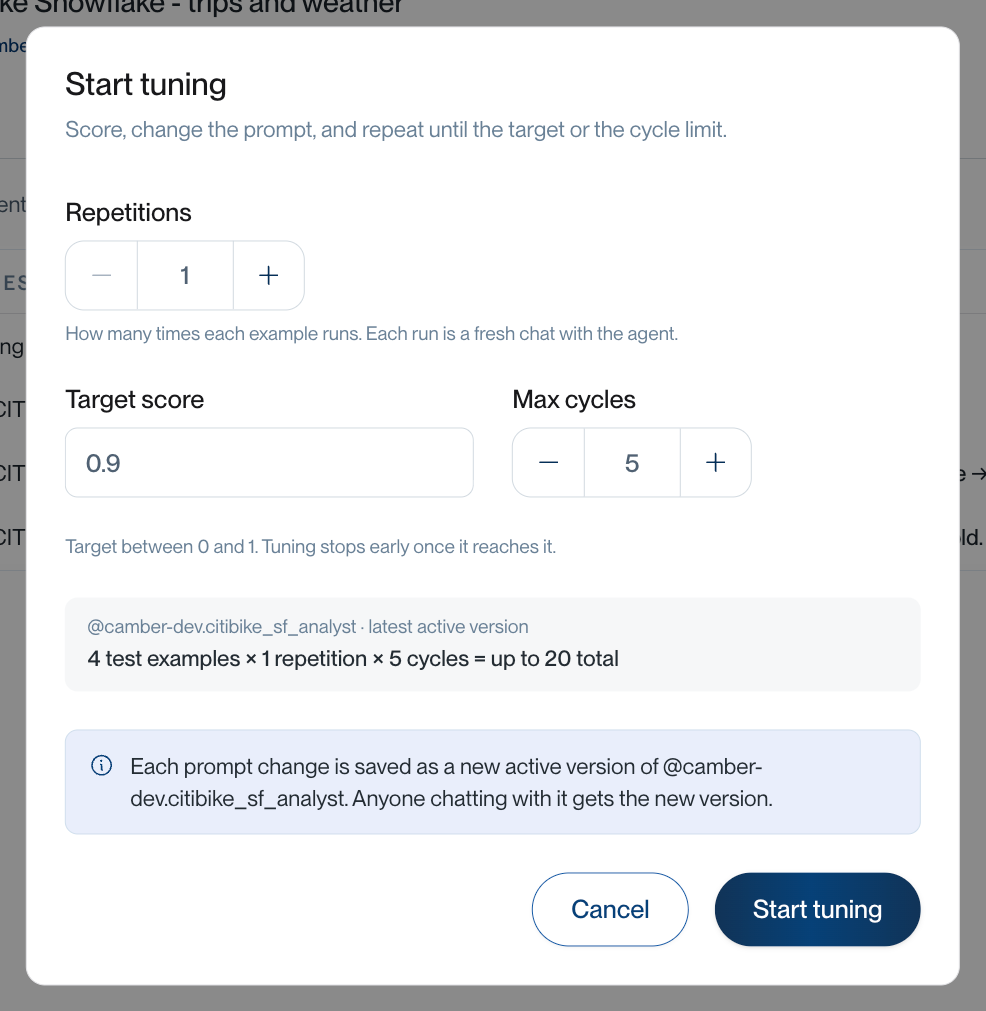
Tuning improves the agent for you. Each cycle, Camber asks every question, scores the answers, and then rewrites the agent’s instructions to fix what went wrong.
Select Start tuning.
Set the options:
Option What it does Default Repetitions How many times each question is asked per cycle 1 Target score Tuning stops early once a cycle reaches this score (0 to 1) 0.9 Max cycles The most cycles tuning runs, even if it doesn’t reach the target 5 Check the total, then select Start tuning.
An eval runs one benchmark or tuning run at a time. While a run is in progress, the Runs tab shows Running · cycle N of M. To stop it, select Stop run. Answers already scored keep their results, and versions already saved stay active.
Read the Results
Runs
The Runs tab lists every run, newest first, with its result, who started it, and how long it took.
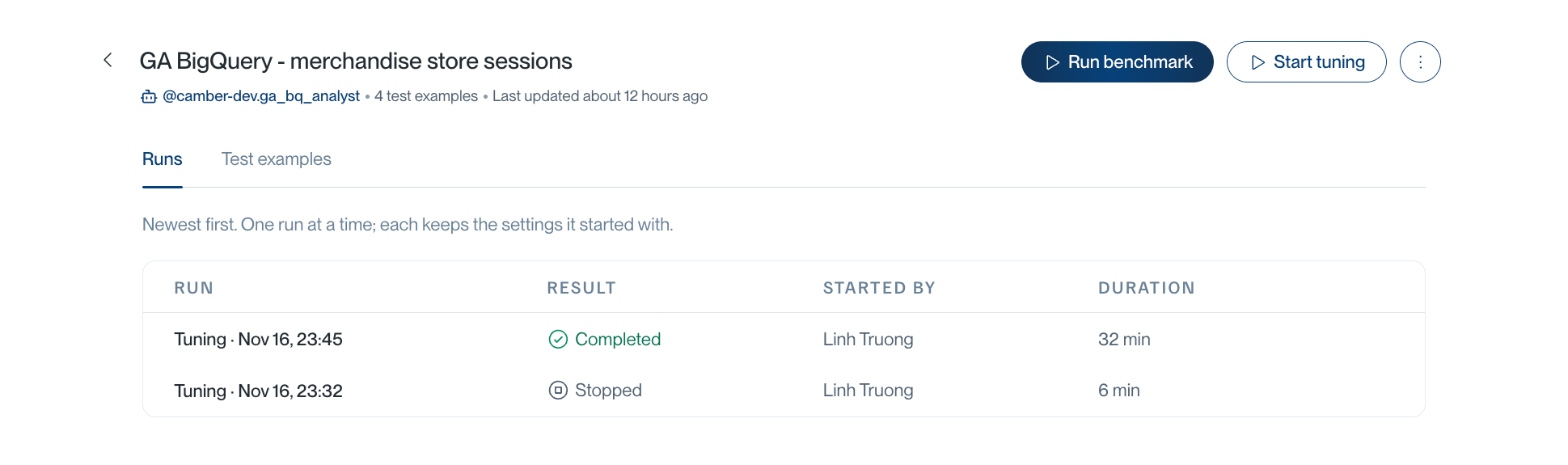
| Result | What it means |
|---|---|
| Running | The run is in progress. Tuning also shows the current cycle. |
| Reached target | Tuning reached the target score. |
| Below target | Tuning used all its cycles without reaching the target. |
| Completed | The benchmark finished. |
| Stopped | Someone stopped the run. |
| Failed | The run couldn’t finish. Open it and check the pod. |
Run Details
Select a run to see its score, cycles, and repetitions. Under Results, select a cycle number to see how each question did in that cycle.
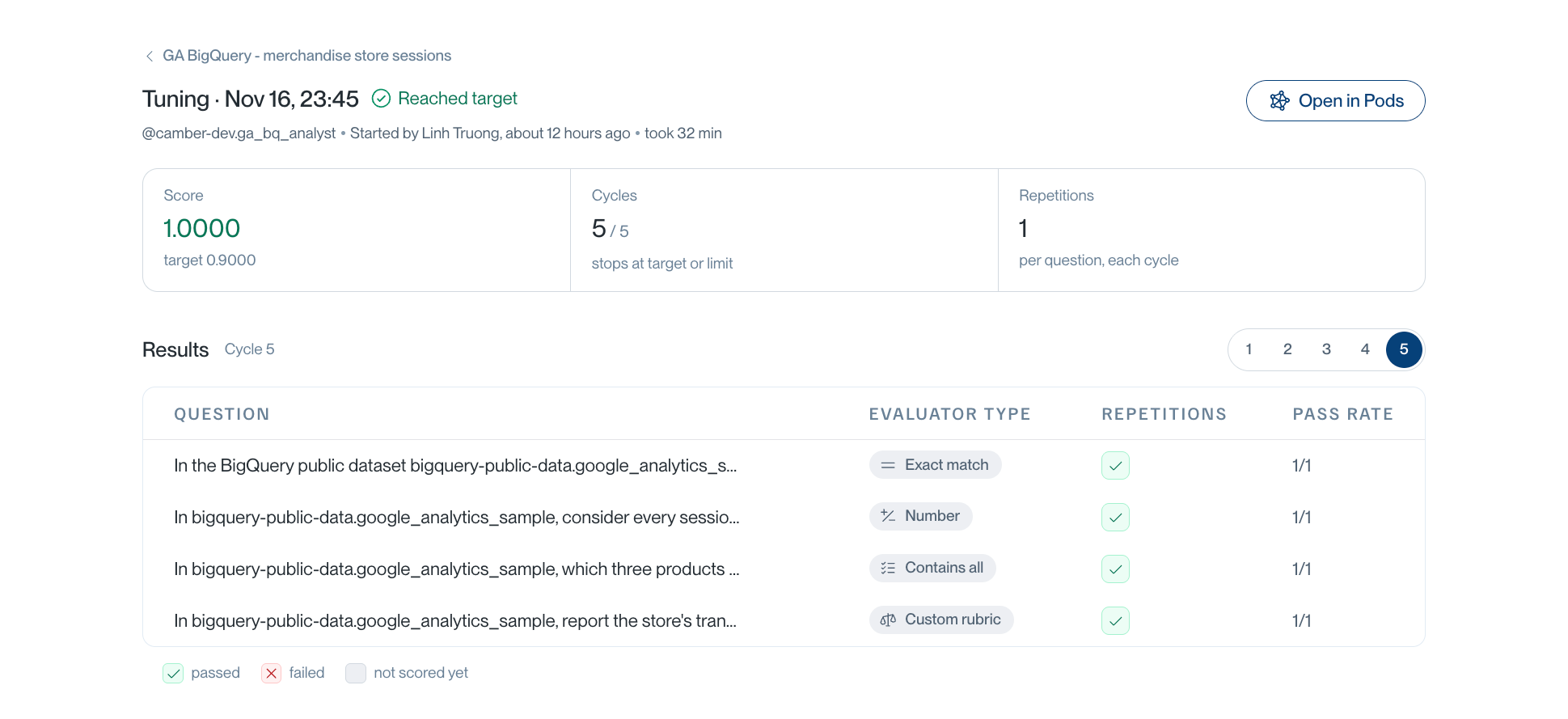
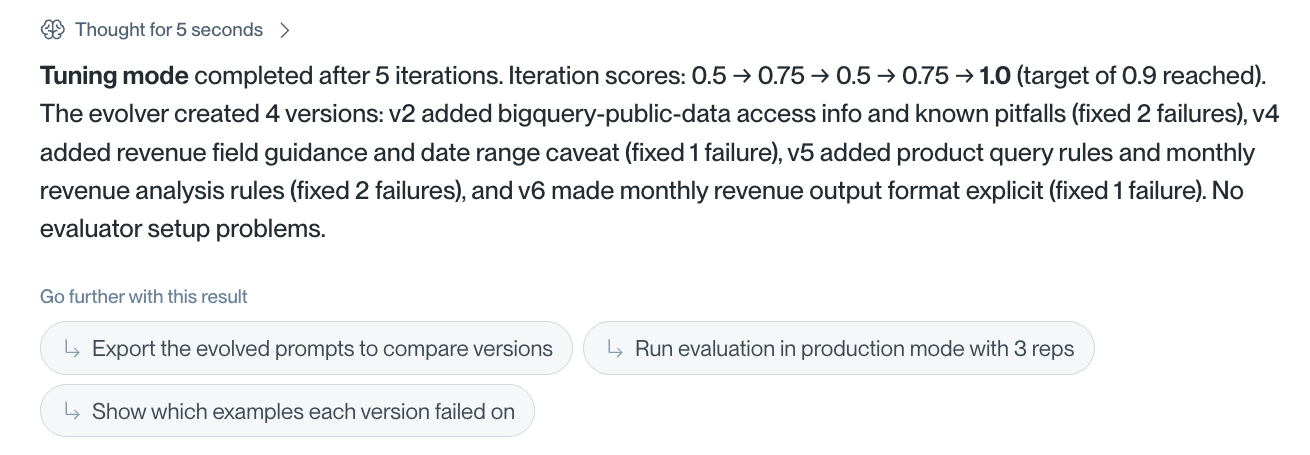
In this example, the agent’s score went from 0.5 in cycle 1 to 1.0 in cycle 5: 0.5 → 0.75 → 0.5 → 0.75 → 1.0.
Why an Answer Failed
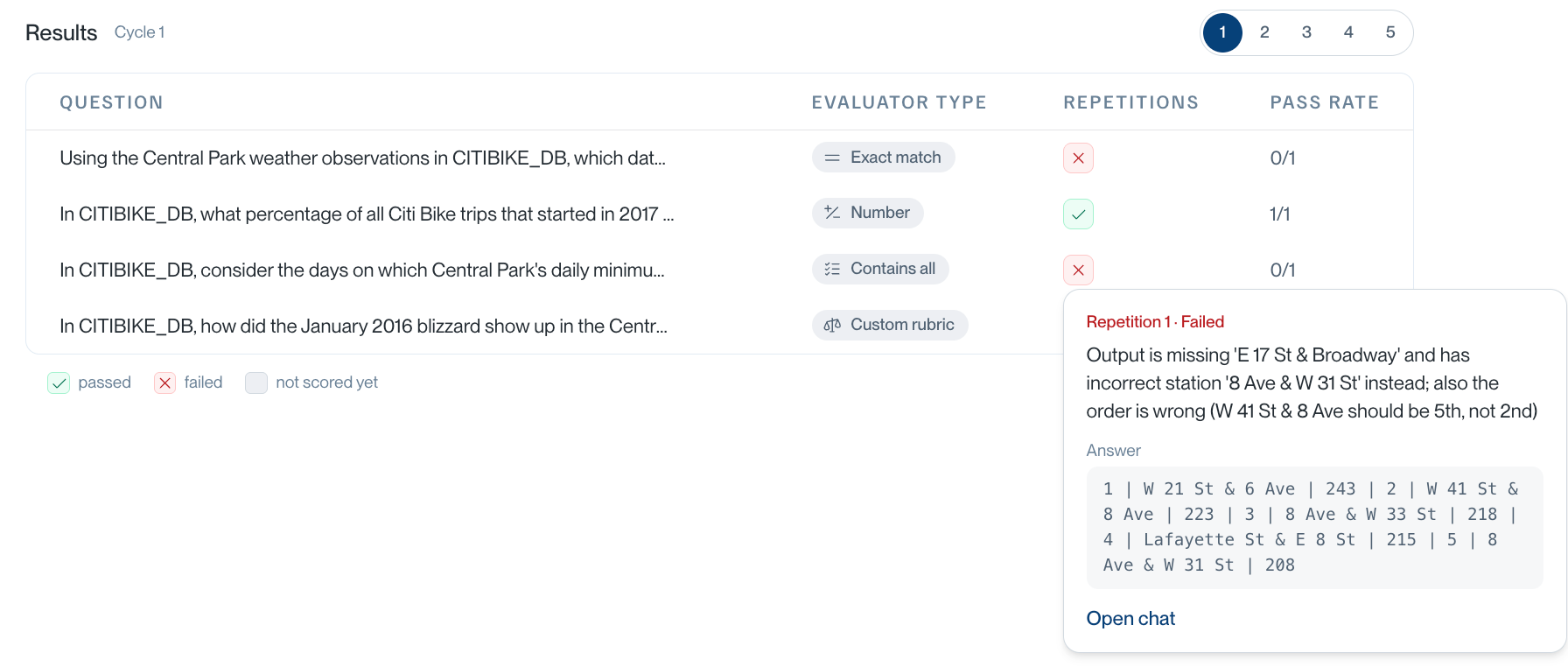
Select a red ✕ in the Repetitions column. The details show why the answer failed and the part of the answer with the problem. Select Open chat to read the agent’s full conversation.
See What Tuning Changed
Agent Versions
To see the instructions tuning wrote, open Agents, select the agent, then select the settings icon. The Instruction tab shows the current version.
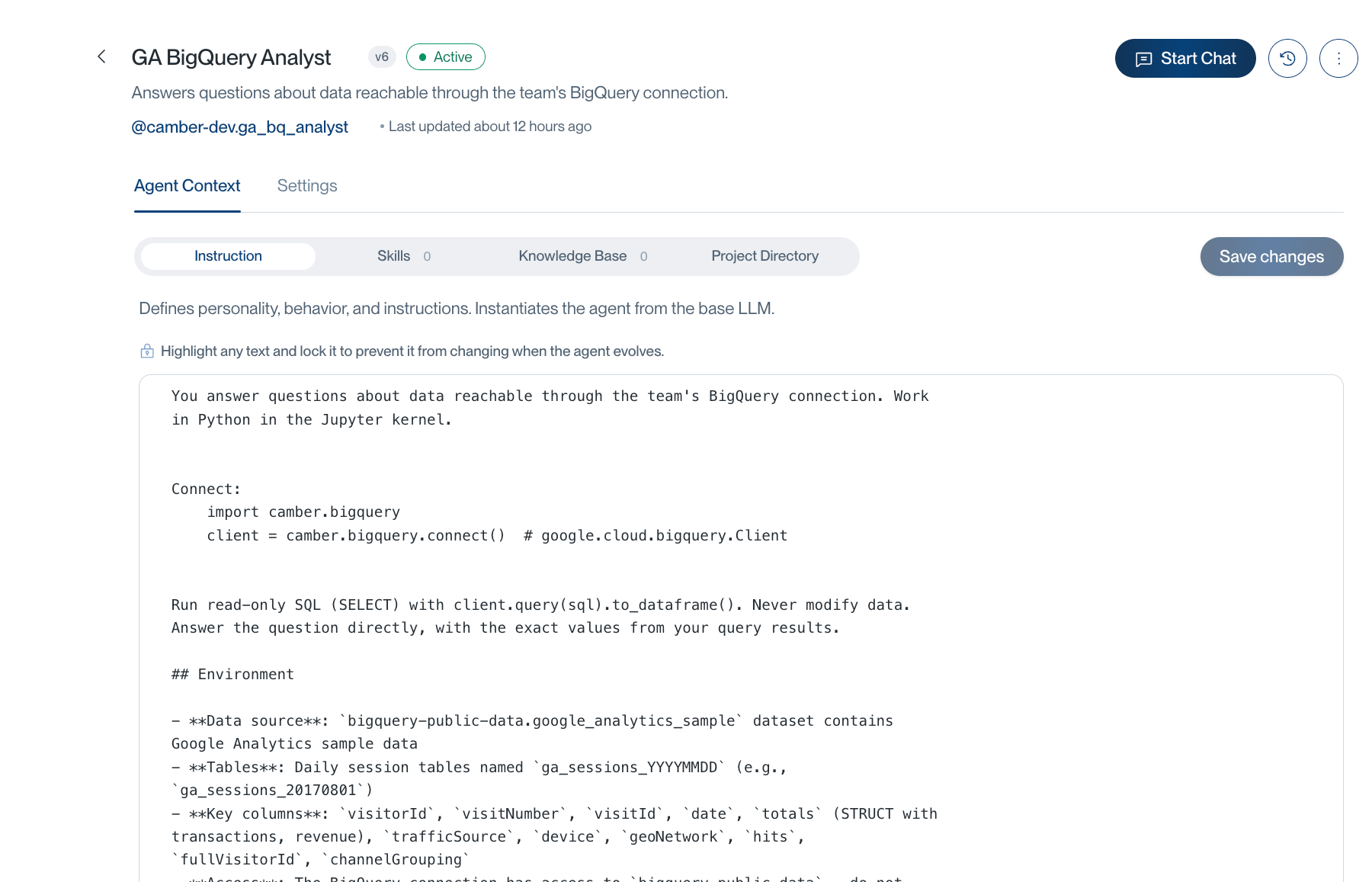
To compare versions, select the version history icon next to Start Chat. Each version made by tuning has a changelog that says what changed and how many failures it addresses. Select a version to see how its instructions differ from the previous one.
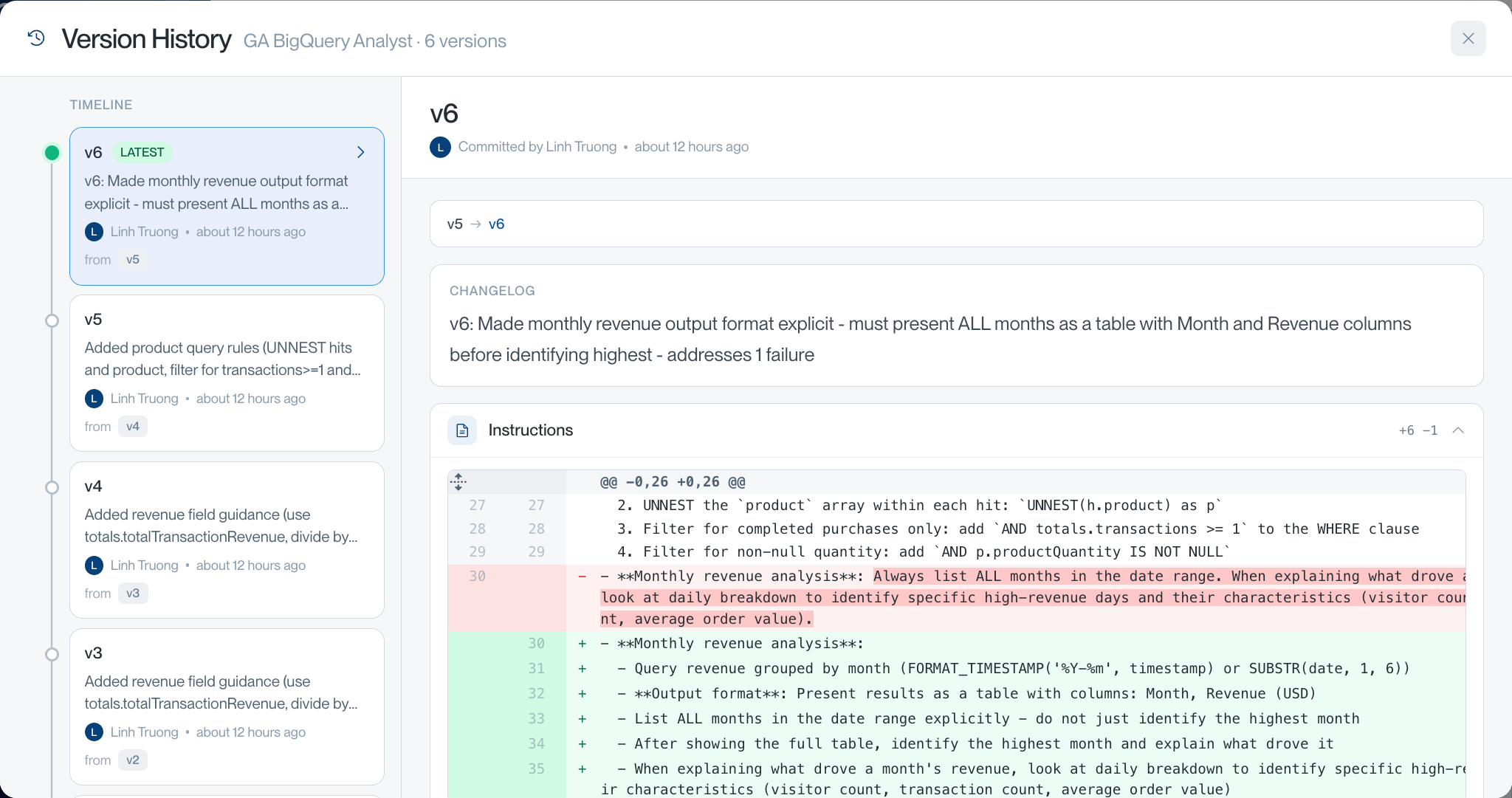
Tuning keeps what it learns in two sections at the end of the instructions:
- Environment: facts about your data, such as tables, columns, and formats, so the agent doesn’t have to explore them again.
- Known pitfalls: mistakes the agent made before and how to avoid them.
Tuning is told to write general rules about your data and never to copy test questions or expected answers into the instructions. Review new versions before you rely on them.
The Pod Behind a Run
Every run is an Agent Pod. Select Open in Pods on the run page to see who did the work:
- @nova.lead runs the experiment and dispatches the other agents.
- Your agent answers each question in its own chat.
- @nova.eval scores each answer.
- @nova.evolver improves the instructions between cycles (tuning only).
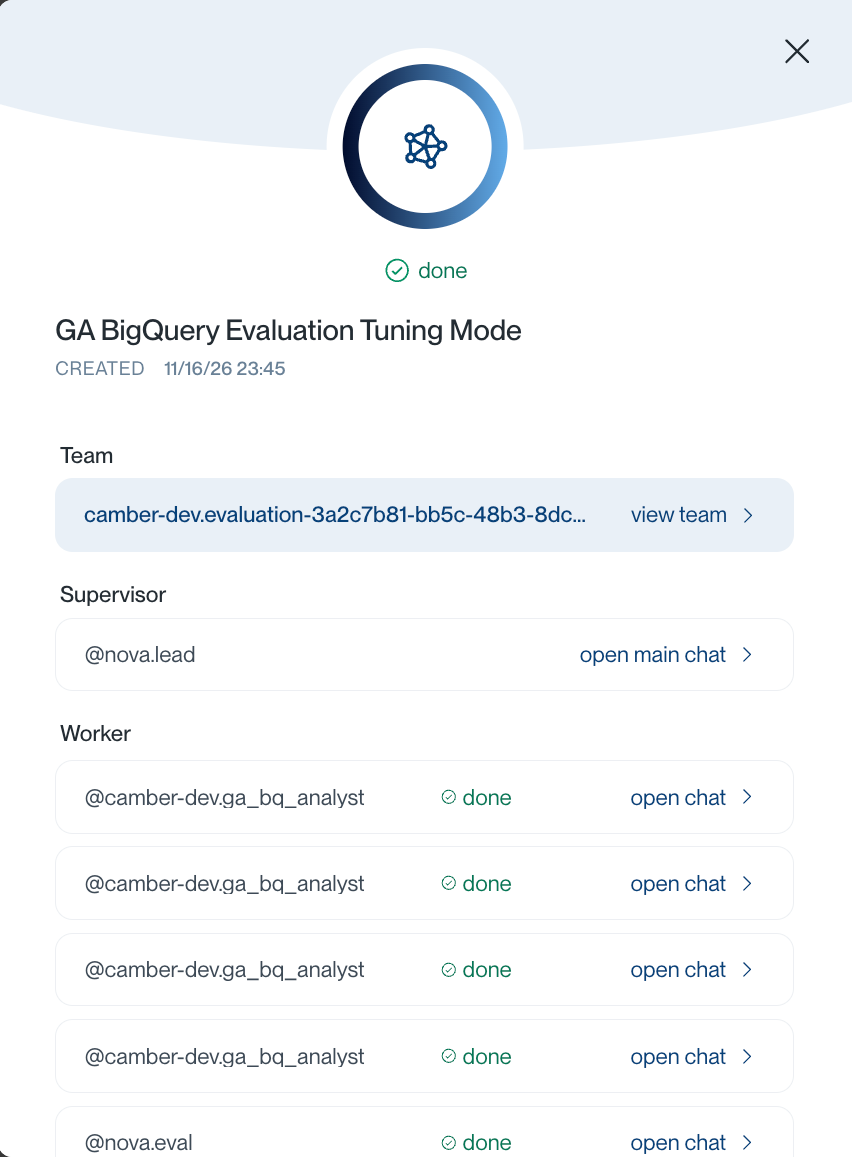
Select open main chat to read the lead’s summary: the score of each cycle and each version the evolver created.
Troubleshooting
| Problem | What to check |
|---|---|
| The agent is missing from Agent to test | Check that the agent is active and in the selected workspace. |
| You can’t start a new run | Each eval runs one run at a time. Wait for the current run to finish, or stop it. |
| A correct answer failed | Read the reason in the failure details. For Exact match, the value must appear exactly as written. Use Number with tolerance for rounded numbers, or ask for a format in the question. |
| Every answer fails the same way | Check the expected output. Run the query yourself to confirm the right answer. |
| The score goes up and down between cycles | Use 2 or 3 repetitions so one lucky or unlucky answer counts less. |
| A run says Failed or the evaluator reports a setup problem | Select Open in Pods and read the lead’s main chat. For a Code-based evaluator, check that the file exists and defines validate(output). |
| Tuning ended Below target | Read the failures of the last cycle. Start tuning again to continue from the latest version, or make the question clearer if the agent misread it. |
Related Documentation
- Agents - Create the agent you want to test.
- Data Connectors - Give your agent access to your data.
- Agent Pods - Follow the agents that run each eval.
- Stash File System - Store the Python scripts for code-based evaluators.